> ## Documentation Index
> Fetch the complete documentation index at: https://docs.geekflare.com/llms.txt
> Use this file to discover all available pages before exploring further.
# Chat Interface
> Familiarize yourself with Geekflare AI advanced chat interface.
## Chat Layout Overview
The Chat Interface is where you interact with AI models, manage prompts, compare results across models, upload files, and organize or share conversations.
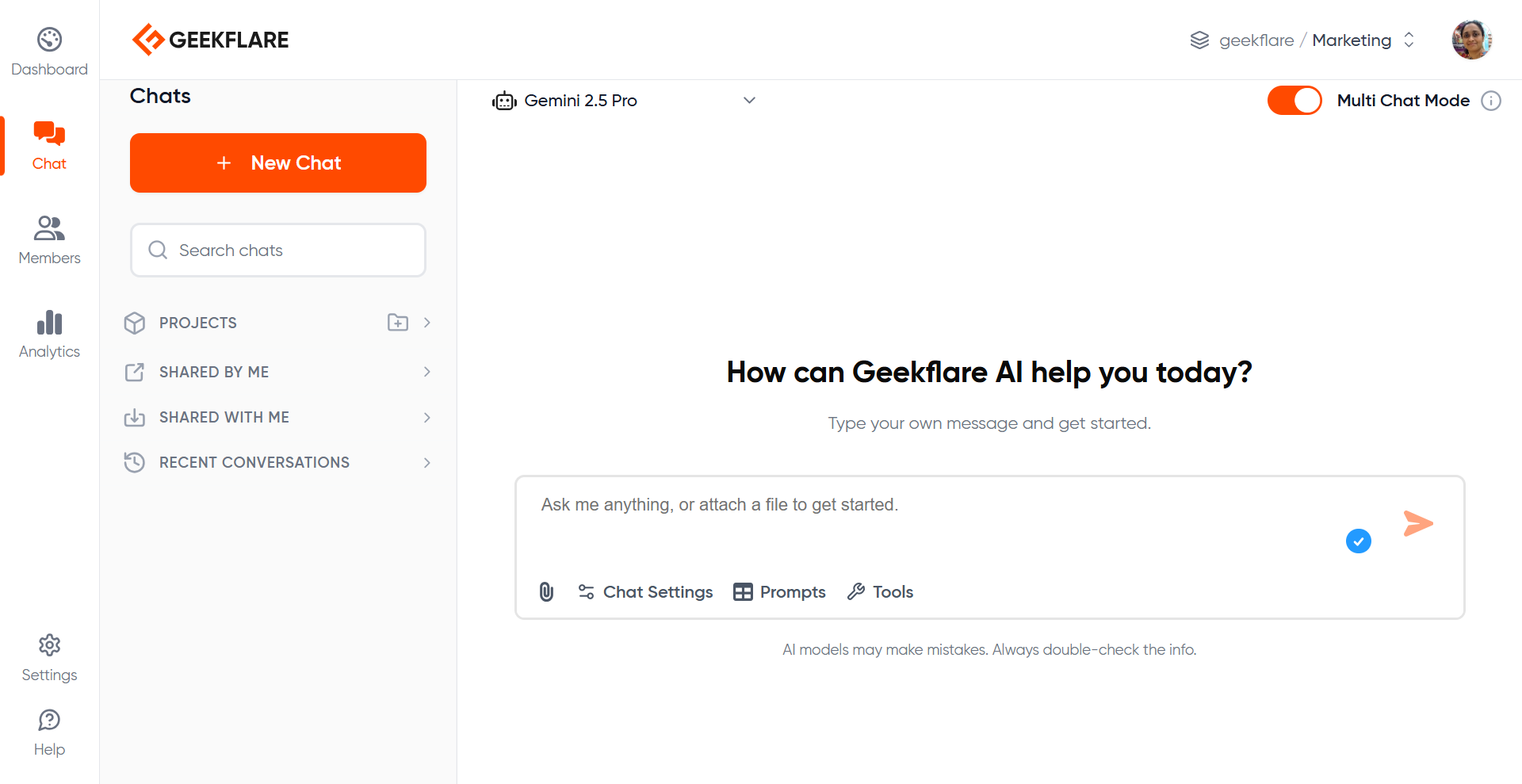 The main elements include:
### **Model Selector**
Choose the AI model you want to interact with. You can switch model at any time without losing context.
The main elements include:
### **Model Selector**
Choose the AI model you want to interact with. You can switch model at any time without losing context.
 ### **Chat Input Box**
Type prompts, upload files, and send instructions from the input area at the bottom of the screen.
### **Chat Input Box**
Type prompts, upload files, and send instructions from the input area at the bottom of the screen.
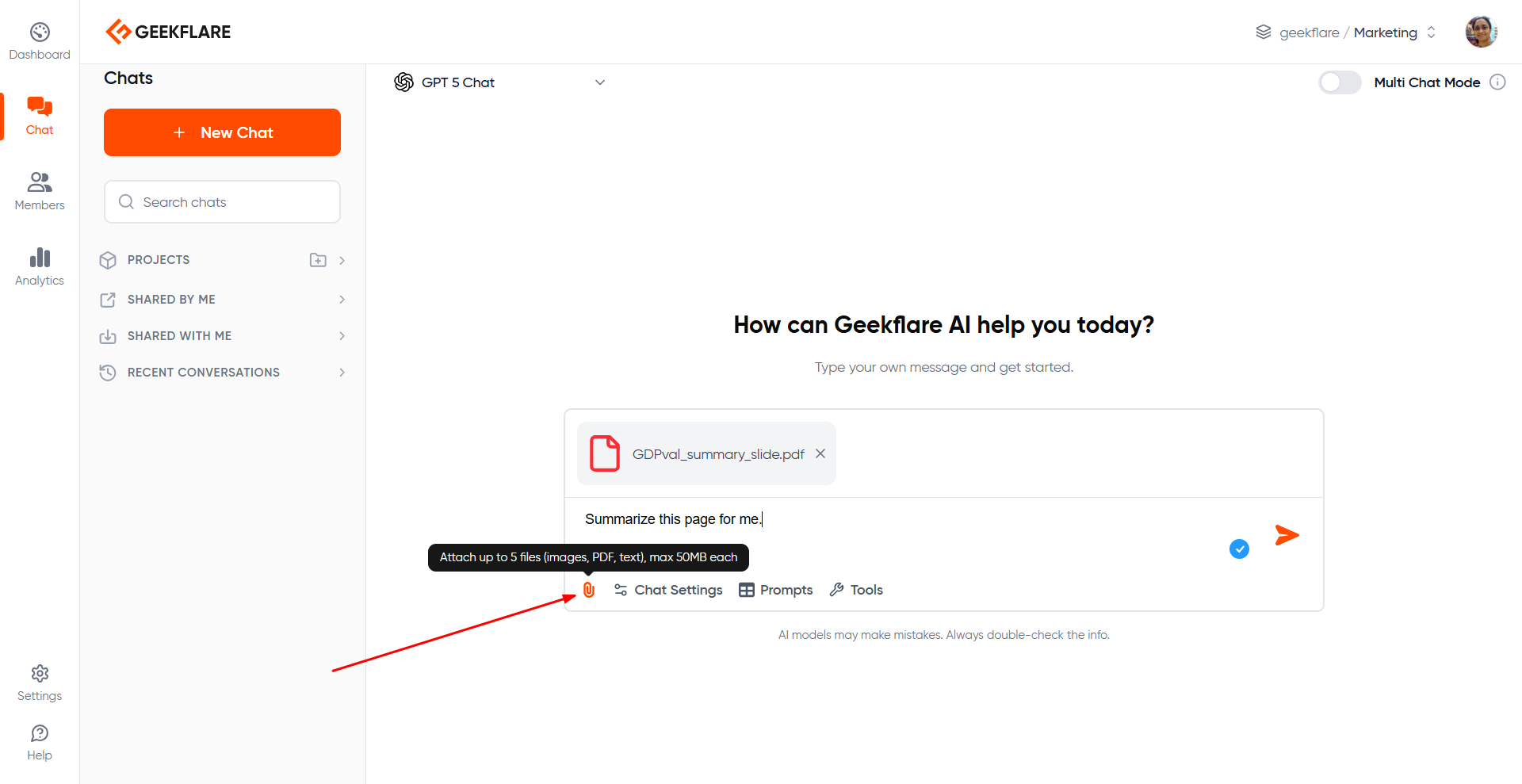
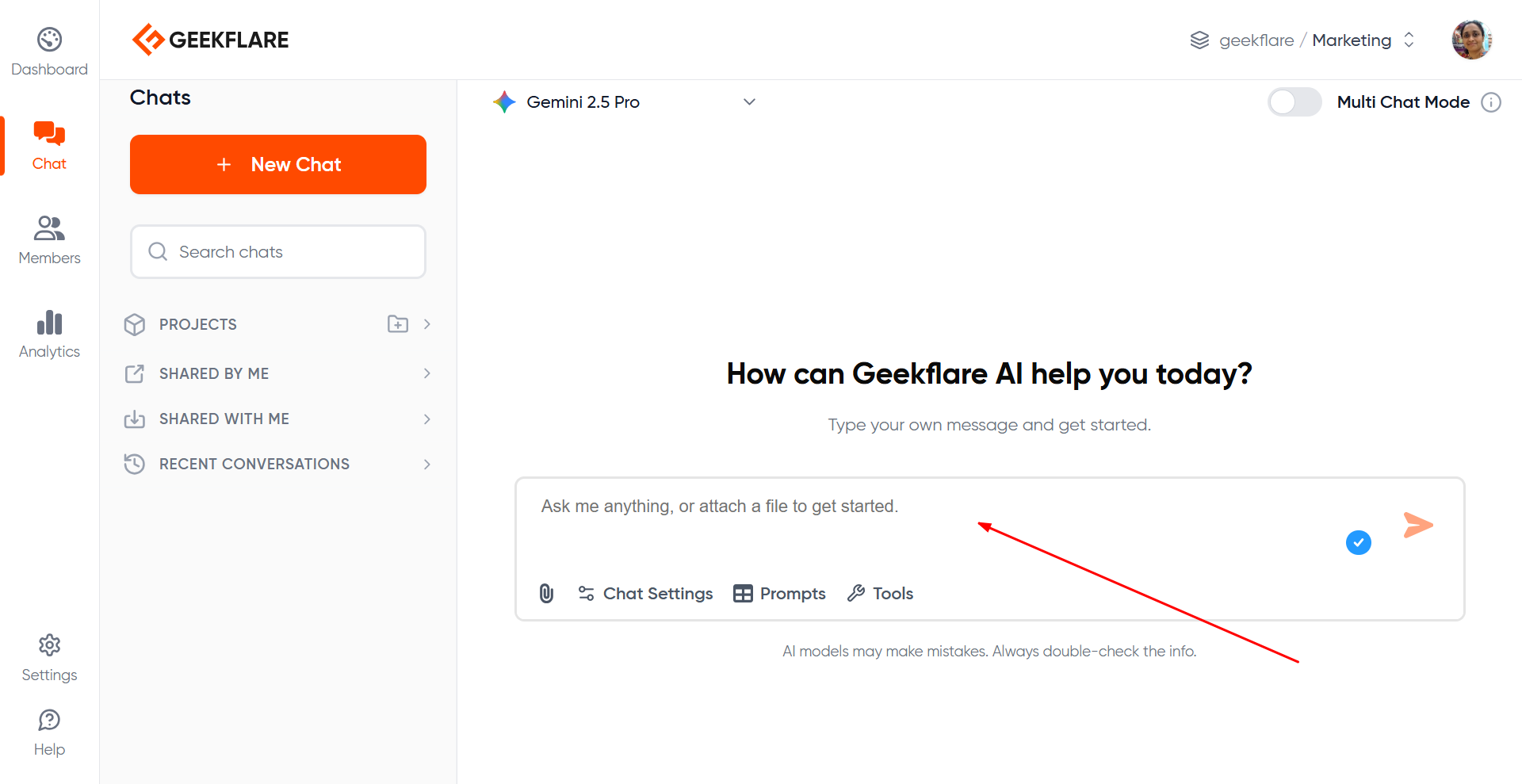 ### Attachments
Upload PDF or image files (up to 50MB). Uploaded files appear inside your chat history and count as part of the conversation.
### Attachments
Upload PDF or image files (up to 50MB). Uploaded files appear inside your chat history and count as part of the conversation.
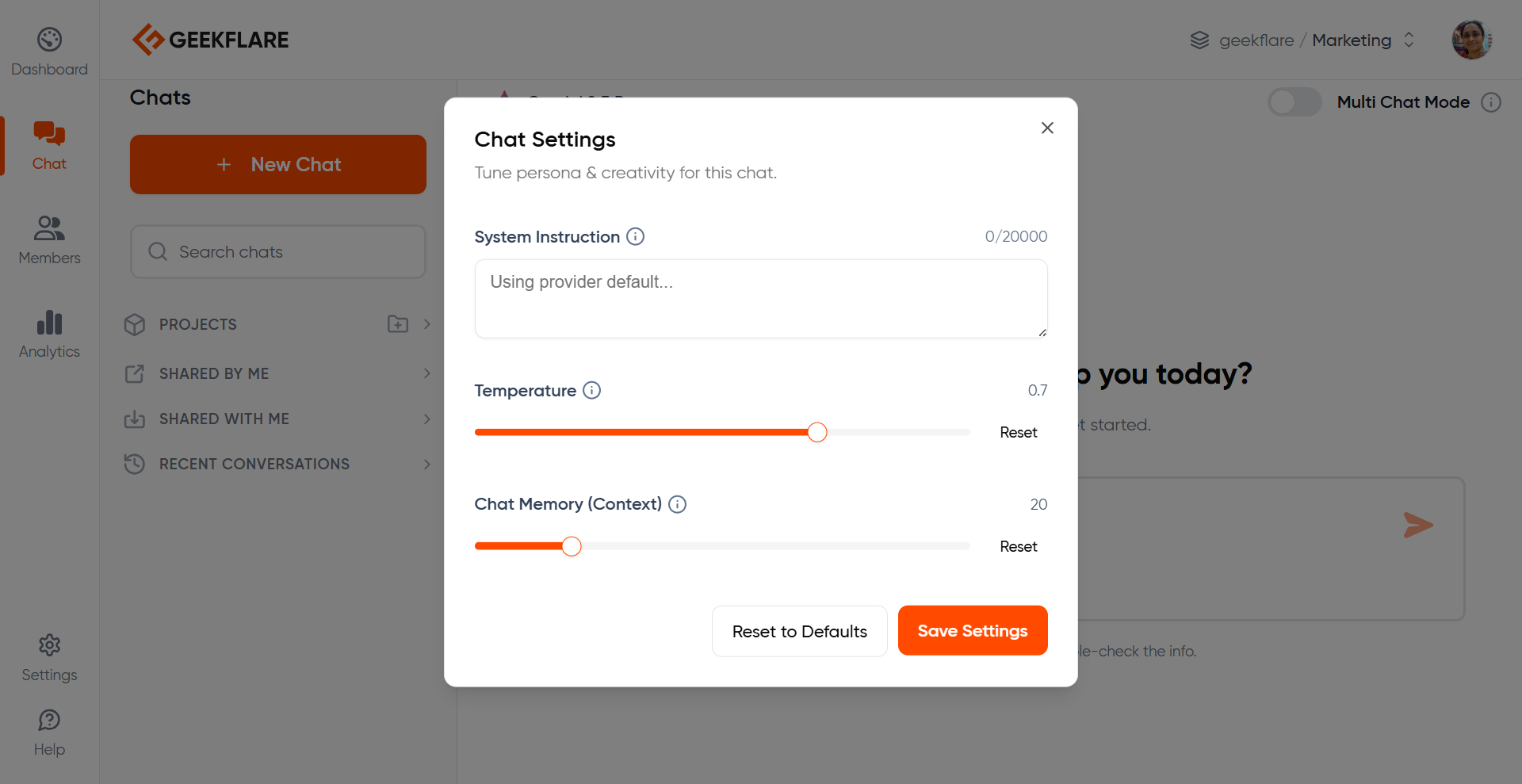
 ### **Chat Settings**
Located at the bottom of the message input box.
### **Chat Settings**
Located at the bottom of the message input box.
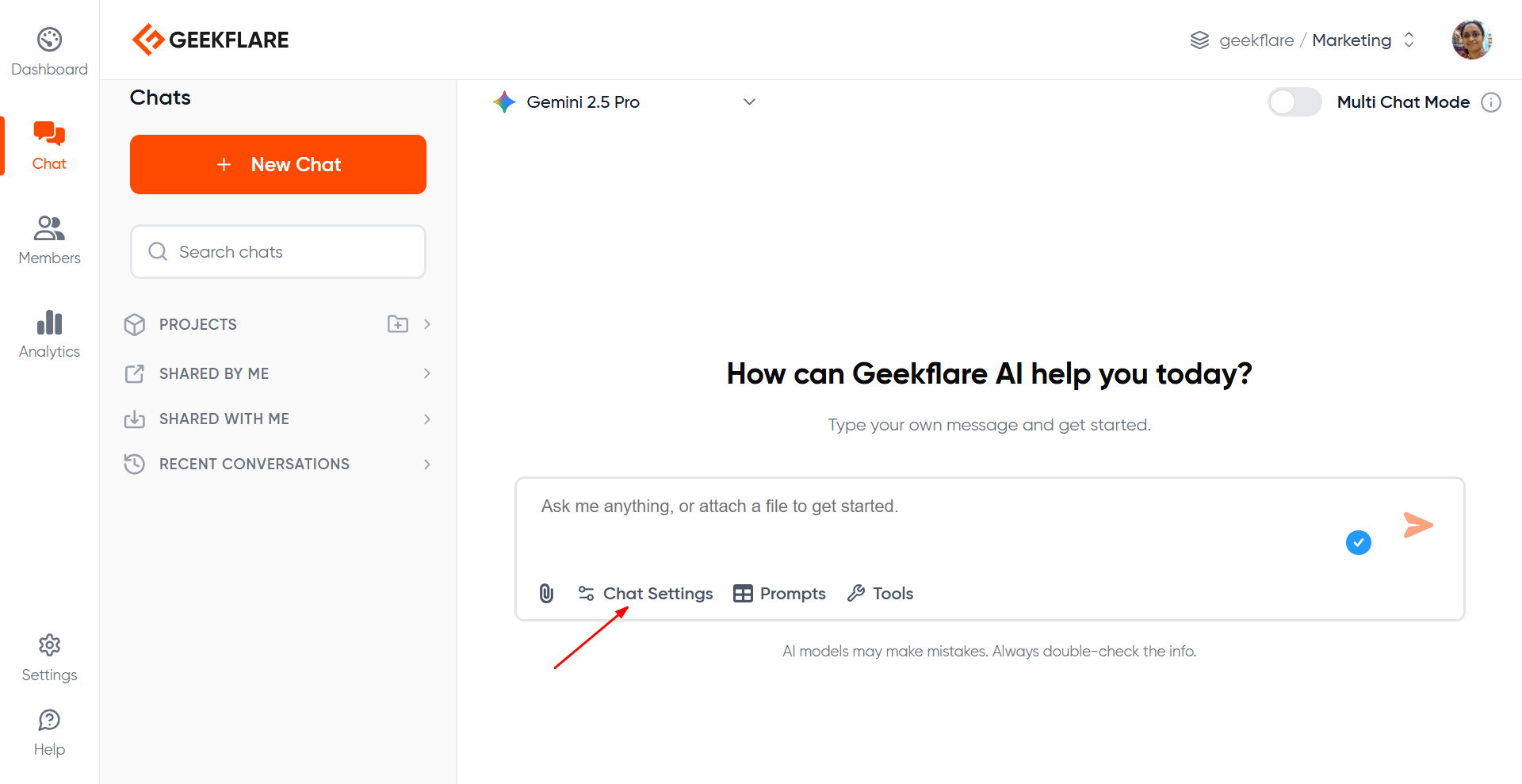 Includes:
* Model parameters like temperature (higher temperature means more creative)
* Context window size (memory retention)
* System instructions for the current chat (anything specific you wish the LLM to remember)
Includes:
* Model parameters like temperature (higher temperature means more creative)
* Context window size (memory retention)
* System instructions for the current chat (anything specific you wish the LLM to remember)
 ### Chat Search
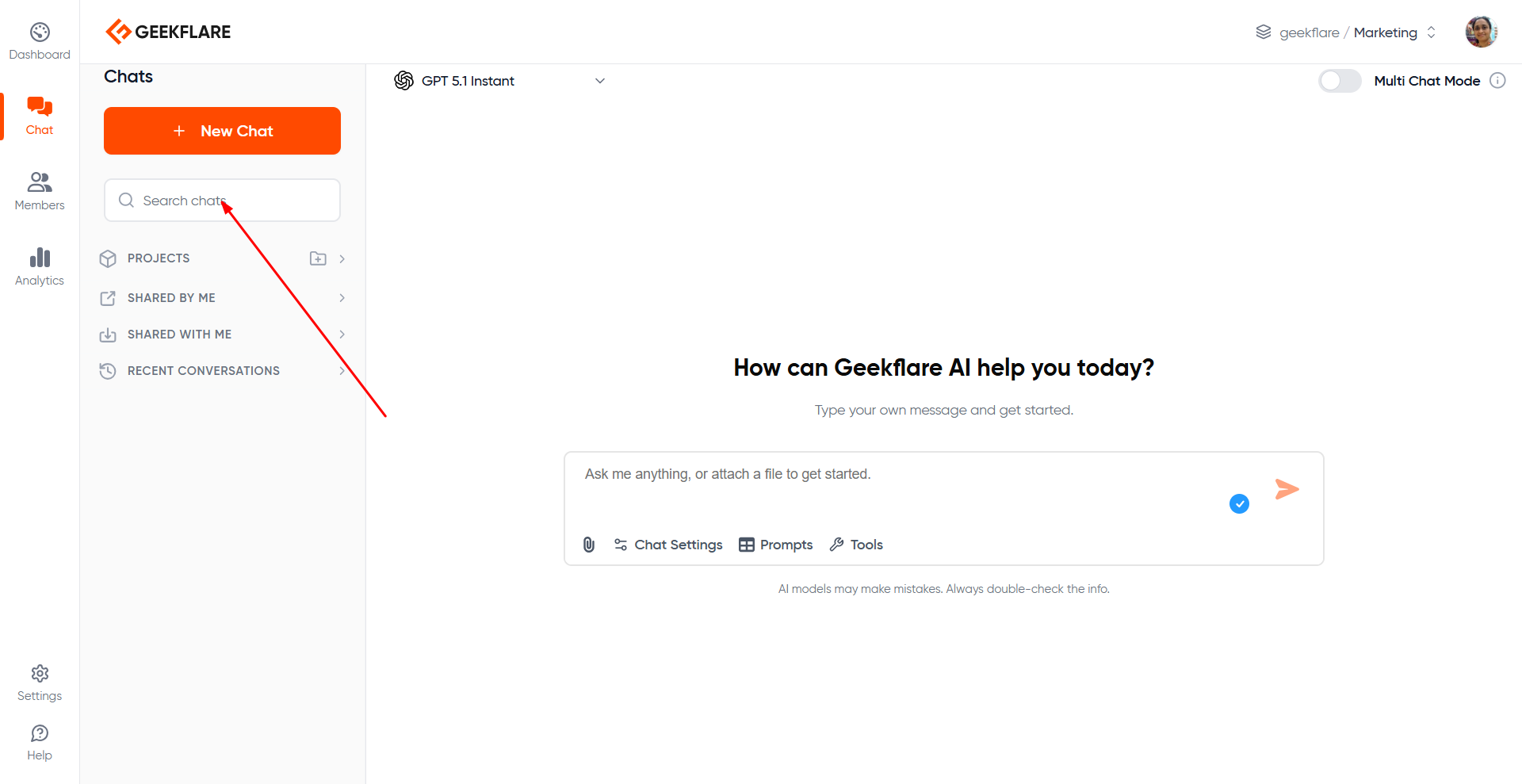
The Chat Search feature allows you to locate any conversation within your current workspace or project. It saves time when you have a large number of chat threads and need to jump back to a specific discussion.
The search bar appears at the top of the chat sidebar, labeled **“Search chats”**.
### Chat Search
The Chat Search feature allows you to locate any conversation within your current workspace or project. It saves time when you have a large number of chat threads and need to jump back to a specific discussion.
The search bar appears at the top of the chat sidebar, labeled **“Search chats”**.
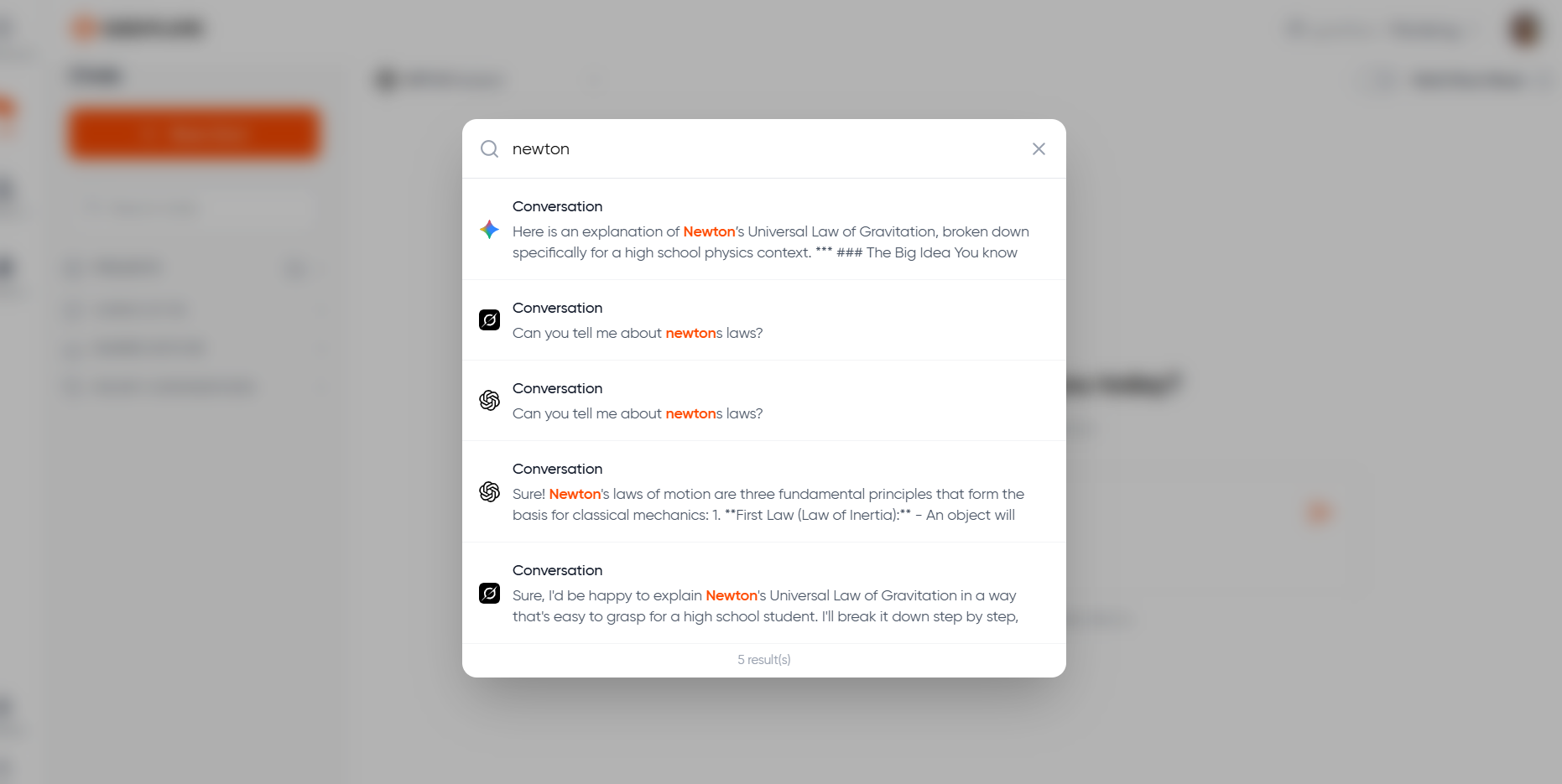
 **How Chat Search Works**
* Start typing a keyword in the Search chats bar.
* Results appear instantly and filter down the visible chat list.
* Search matches against chat titles and keywords within each conversation thread.
**How Chat Search Works**
* Start typing a keyword in the Search chats bar.
* Results appear instantly and filter down the visible chat list.
* Search matches against chat titles and keywords within each conversation thread.
 ### Chat History
The chat history in the left sidebar shows all chats in the current workspace or project.
You can rename, move to project, delete, or share conversation threads from here.
### Chat History
The chat history in the left sidebar shows all chats in the current workspace or project.
You can rename, move to project, delete, or share conversation threads from here.
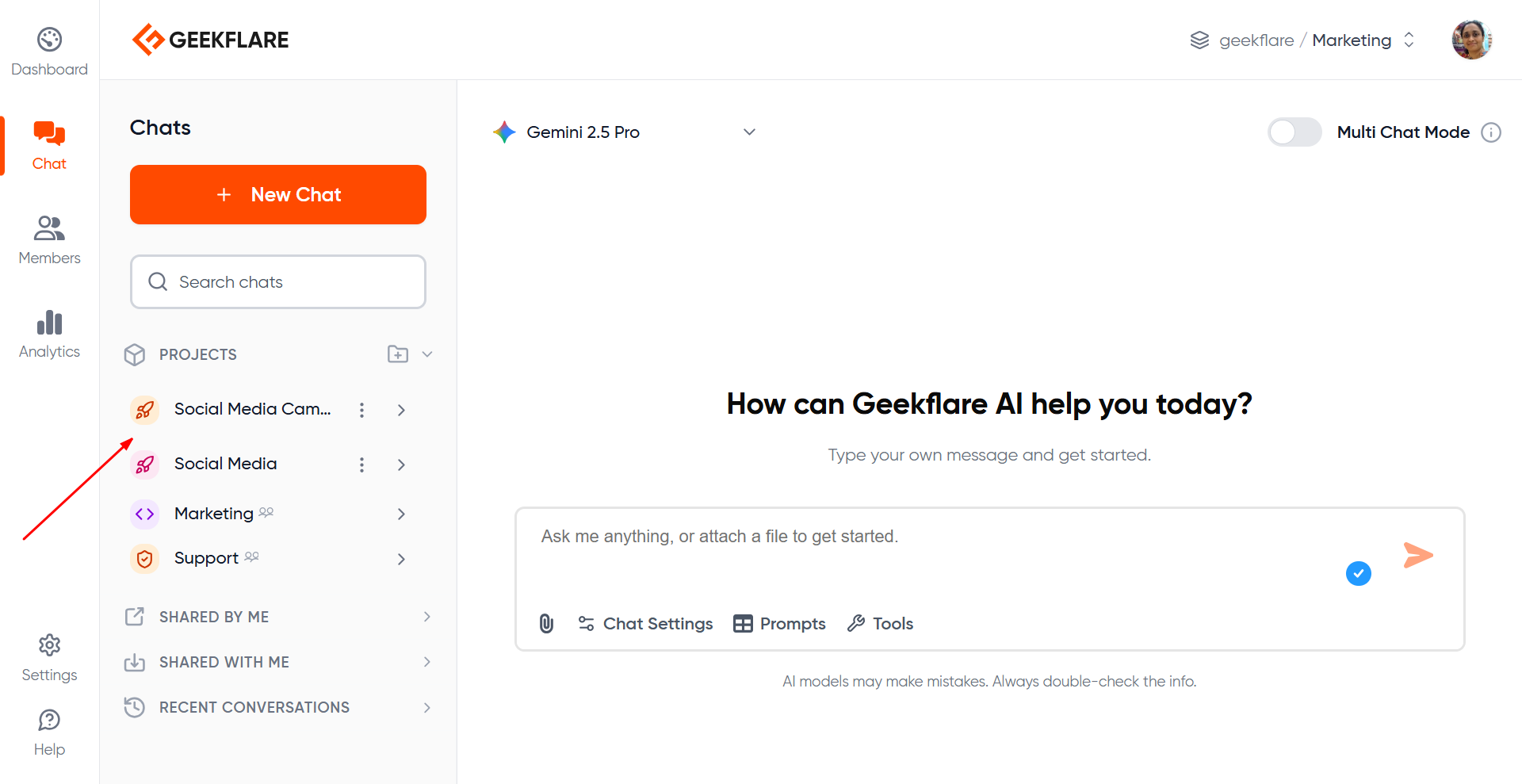
 ### **Projects**
Allows you organize related chats into projects, have its own specific instruction - like a context based on client, campaign etc. Read more about [Projects](/ai/features/projects).
### **Projects**
Allows you organize related chats into projects, have its own specific instruction - like a context based on client, campaign etc. Read more about [Projects](/ai/features/projects).
 ### **Workspace Indicator**
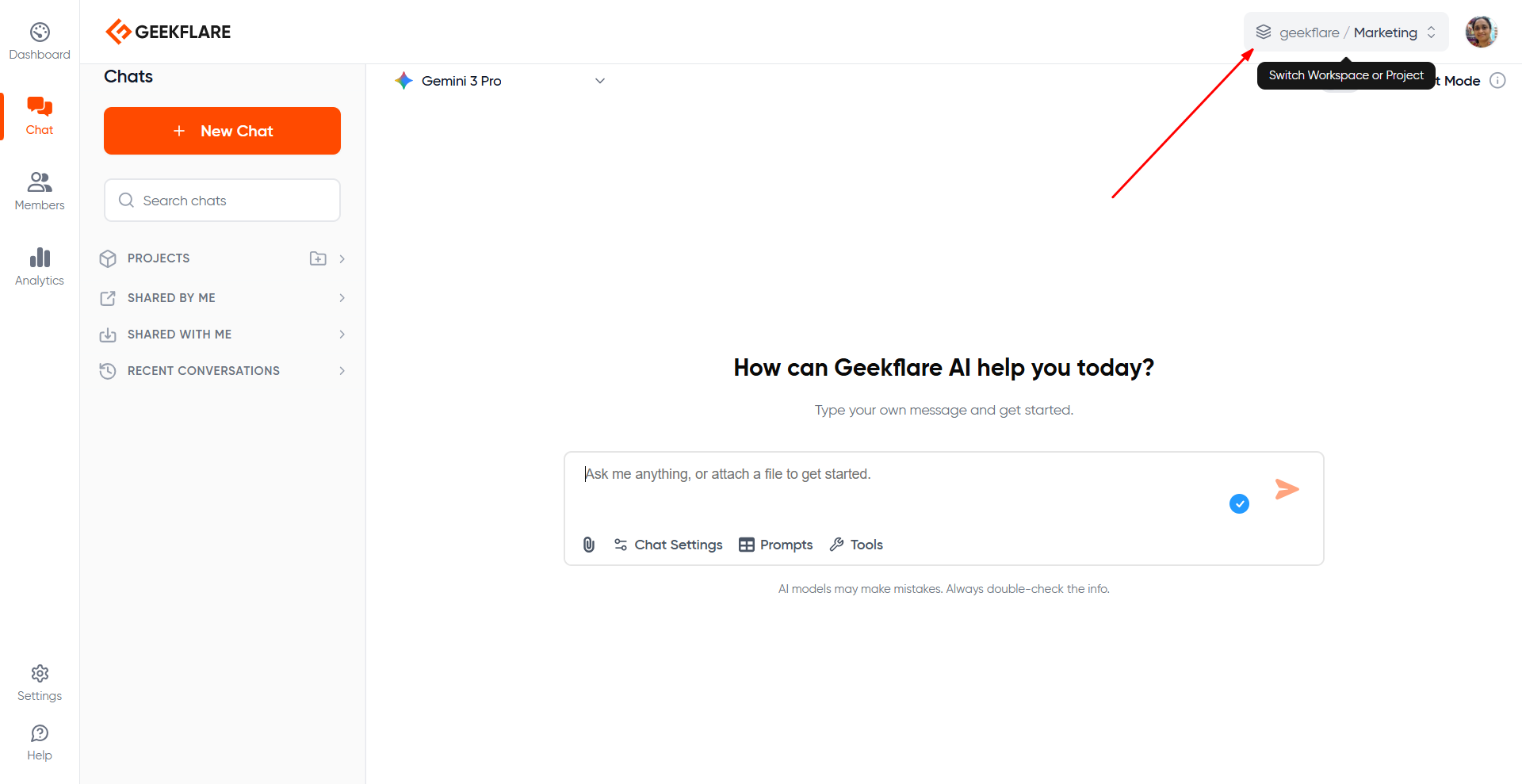
Visible on the top right; shows your current organization and workspace and lets you switch between them.
### **Workspace Indicator**
Visible on the top right; shows your current organization and workspace and lets you switch between them.
 ### **Stop Button**
During response generation, a **Stop** button appears in the prompt box.
### **Stop Button**
During response generation, a **Stop** button appears in the prompt box.
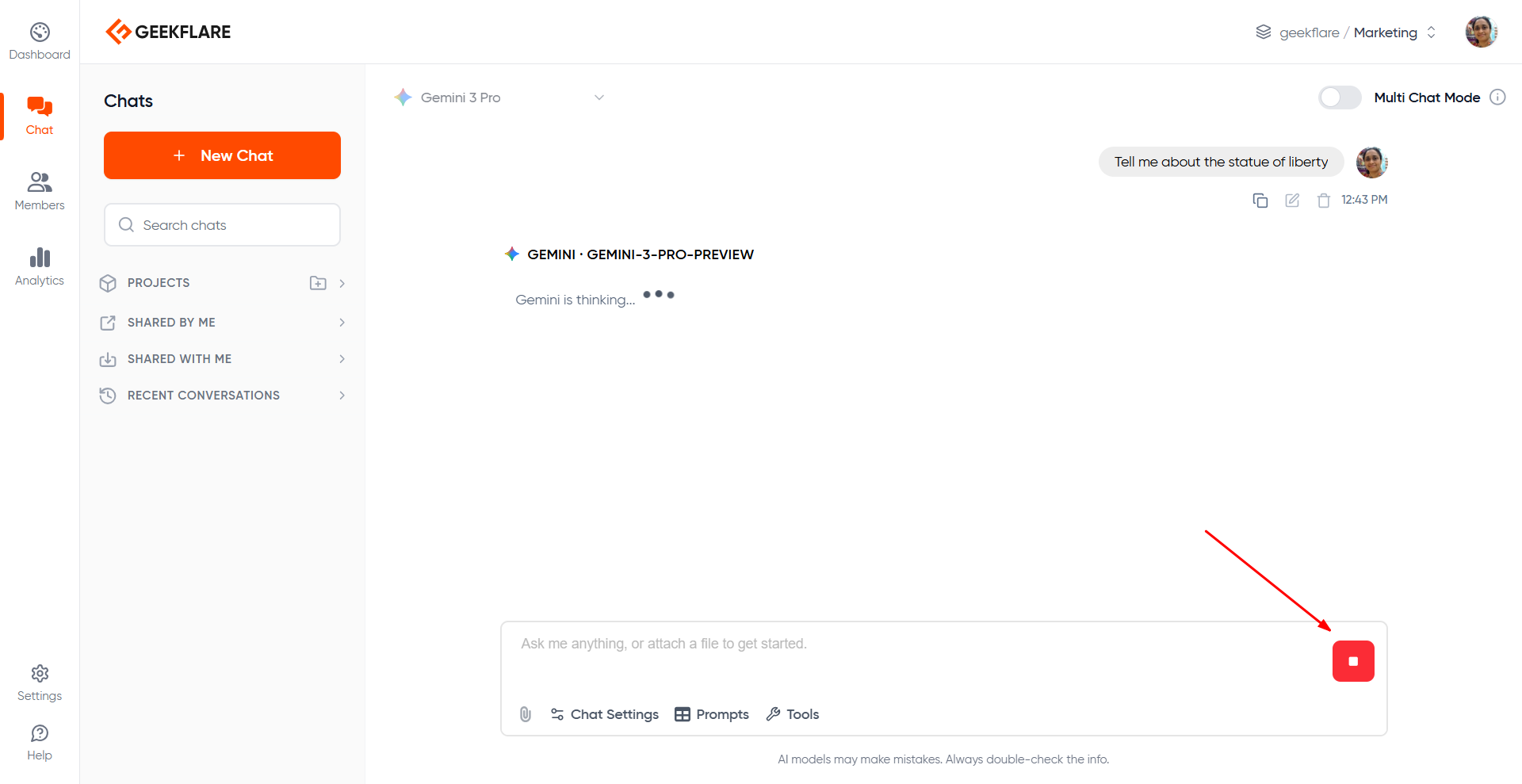 Clicking it immediately stops the model’s response. This is useful when:
* The model starts going off-track
* You want to refine or correct the prompt
* You only needed a partial answer
## Switching Models During Chat
You can change the model at any point in the same conversation thread without starting a new thread. Switching models:
* Does not reset context
* Continues the same conversation with all previous messages included
Switching is simple. Just go to the model selector and choose another model before sending the next prompt on the same thread.
## Multi-Model Chat
Geekflare AI supports multi model AI chat:
### **Parallel Responses (Multi-Model Chat)**
In Geekflare Chat, you can send the same prompt to **up to five models simultaneously** and view their outputs side-by-side.
Toggle the multi-model chat, select upto 5 models from the model selector and enter your prompt.
Clicking it immediately stops the model’s response. This is useful when:
* The model starts going off-track
* You want to refine or correct the prompt
* You only needed a partial answer
## Switching Models During Chat
You can change the model at any point in the same conversation thread without starting a new thread. Switching models:
* Does not reset context
* Continues the same conversation with all previous messages included
Switching is simple. Just go to the model selector and choose another model before sending the next prompt on the same thread.
## Multi-Model Chat
Geekflare AI supports multi model AI chat:
### **Parallel Responses (Multi-Model Chat)**
In Geekflare Chat, you can send the same prompt to **up to five models simultaneously** and view their outputs side-by-side.
Toggle the multi-model chat, select upto 5 models from the model selector and enter your prompt.
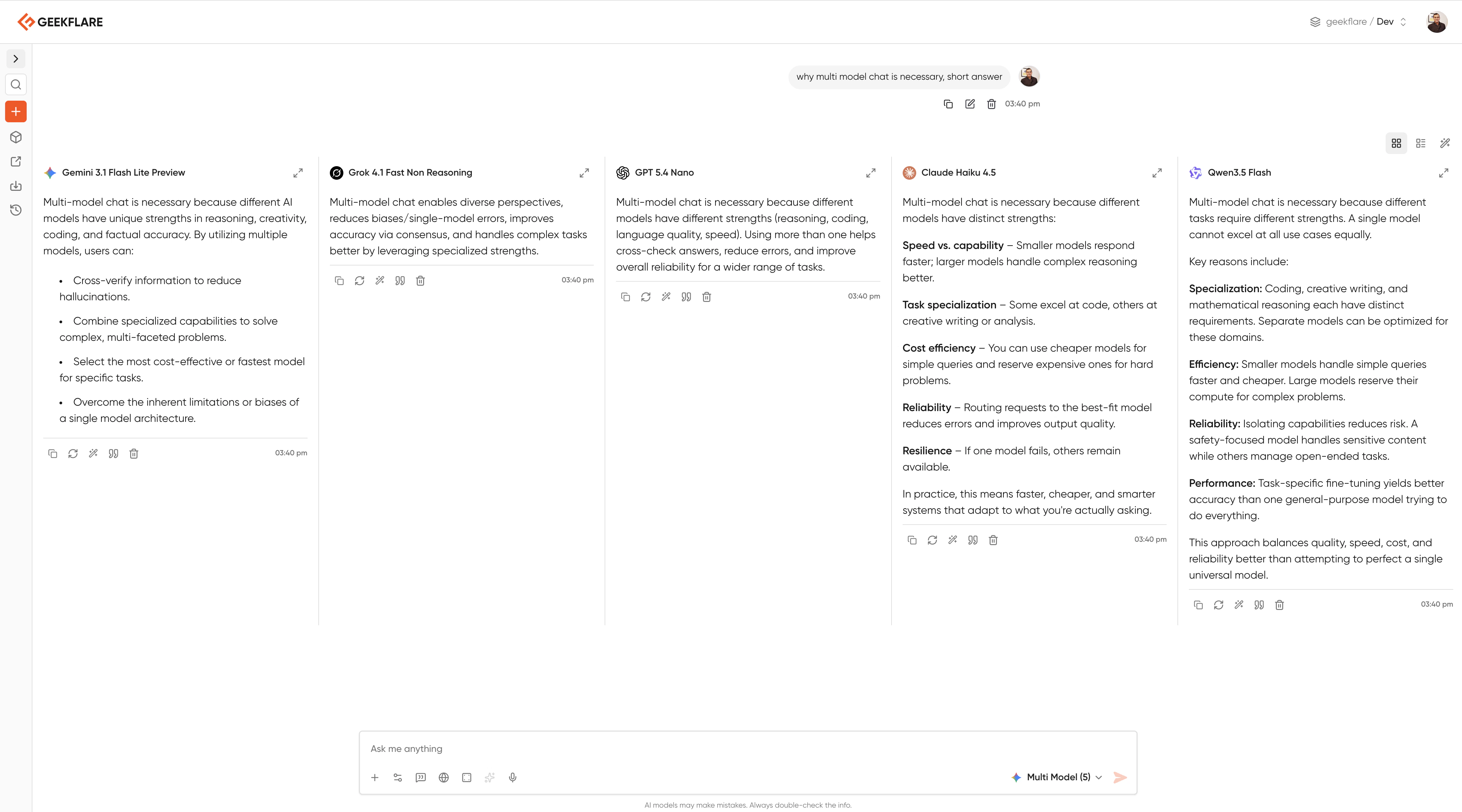
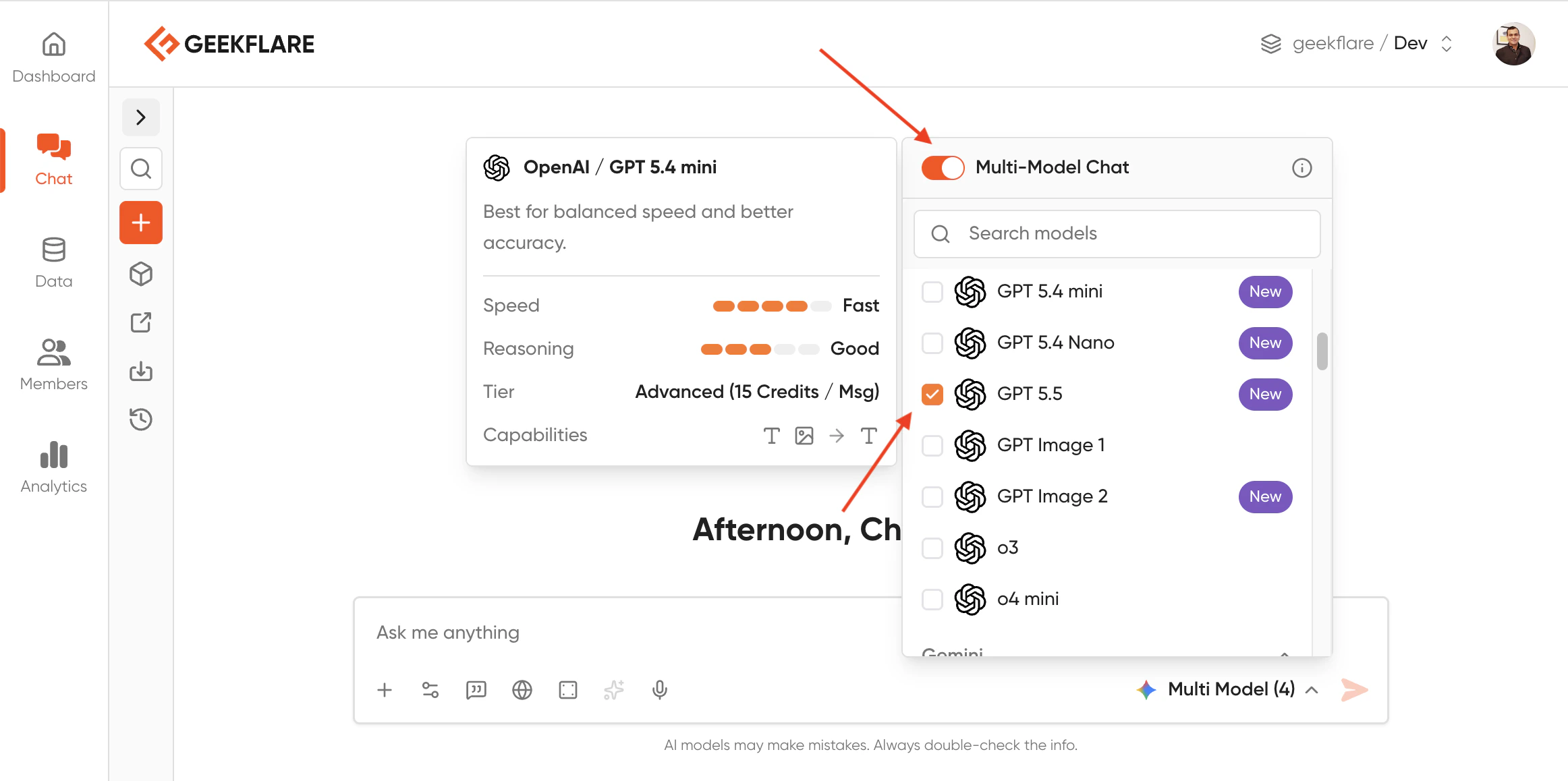 You can comppare the responses side-by-side.
 ### **Manual Switching**
You can switch the model and click the ‘regenerate’ option within the same thread to compare how models handle context differently.
As shown below, I have asked Gemini a question and got a response.
### **Manual Switching**
You can switch the model and click the ‘regenerate’ option within the same thread to compare how models handle context differently.
As shown below, I have asked Gemini a question and got a response.
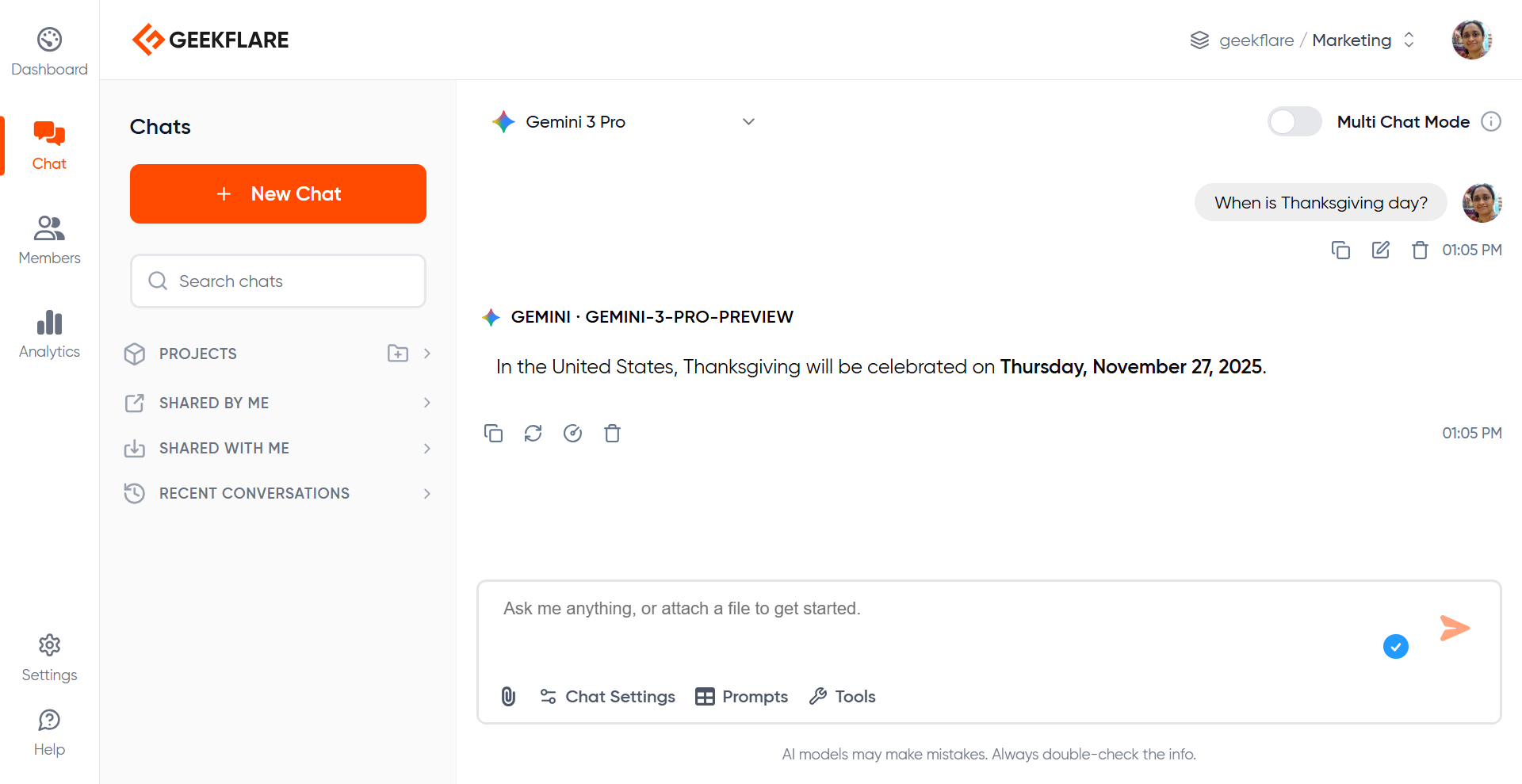 Now I switch the model and ask GPT 5.1 Instant the same question.
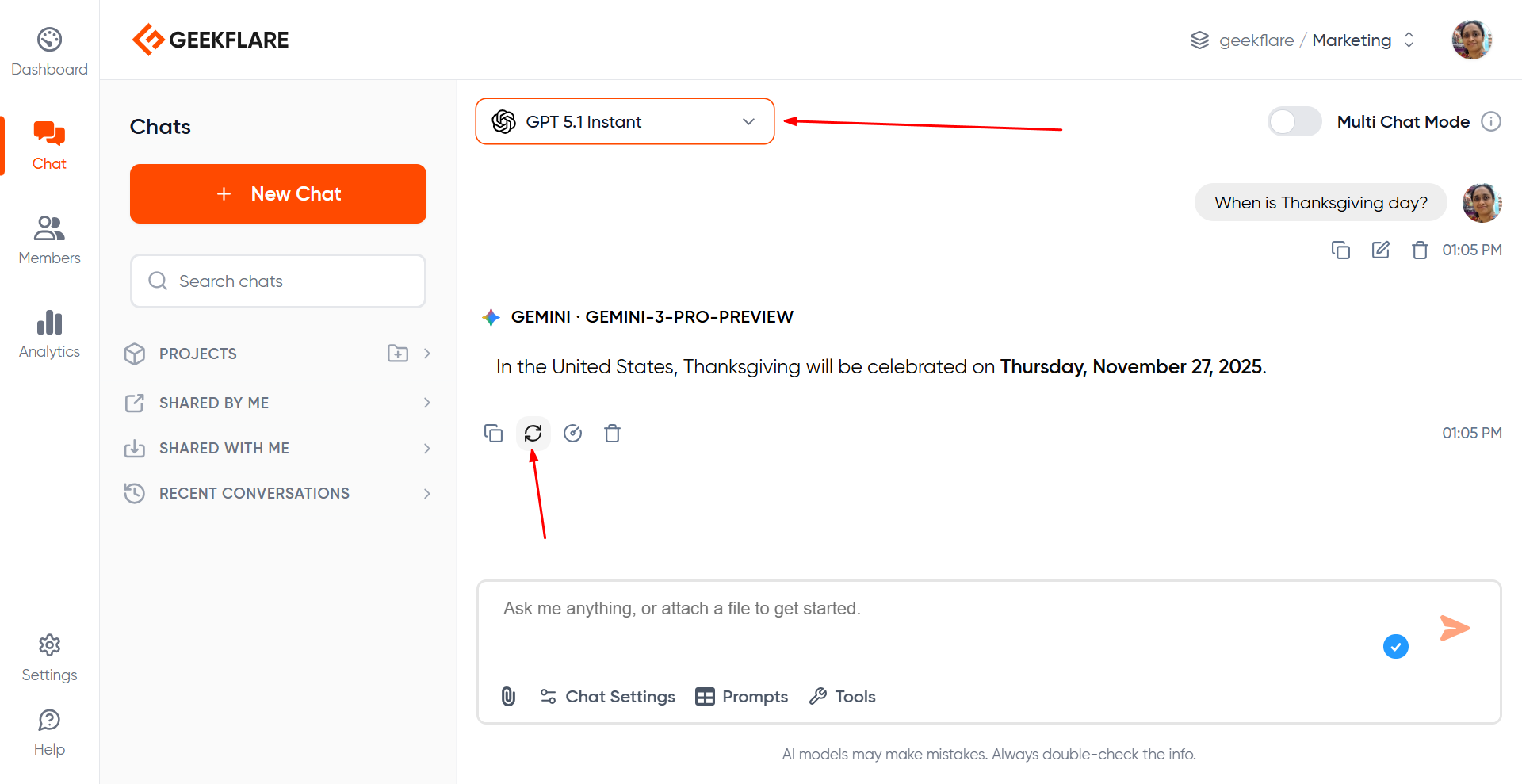 You can view both the responses.
 ## Sharing Chats
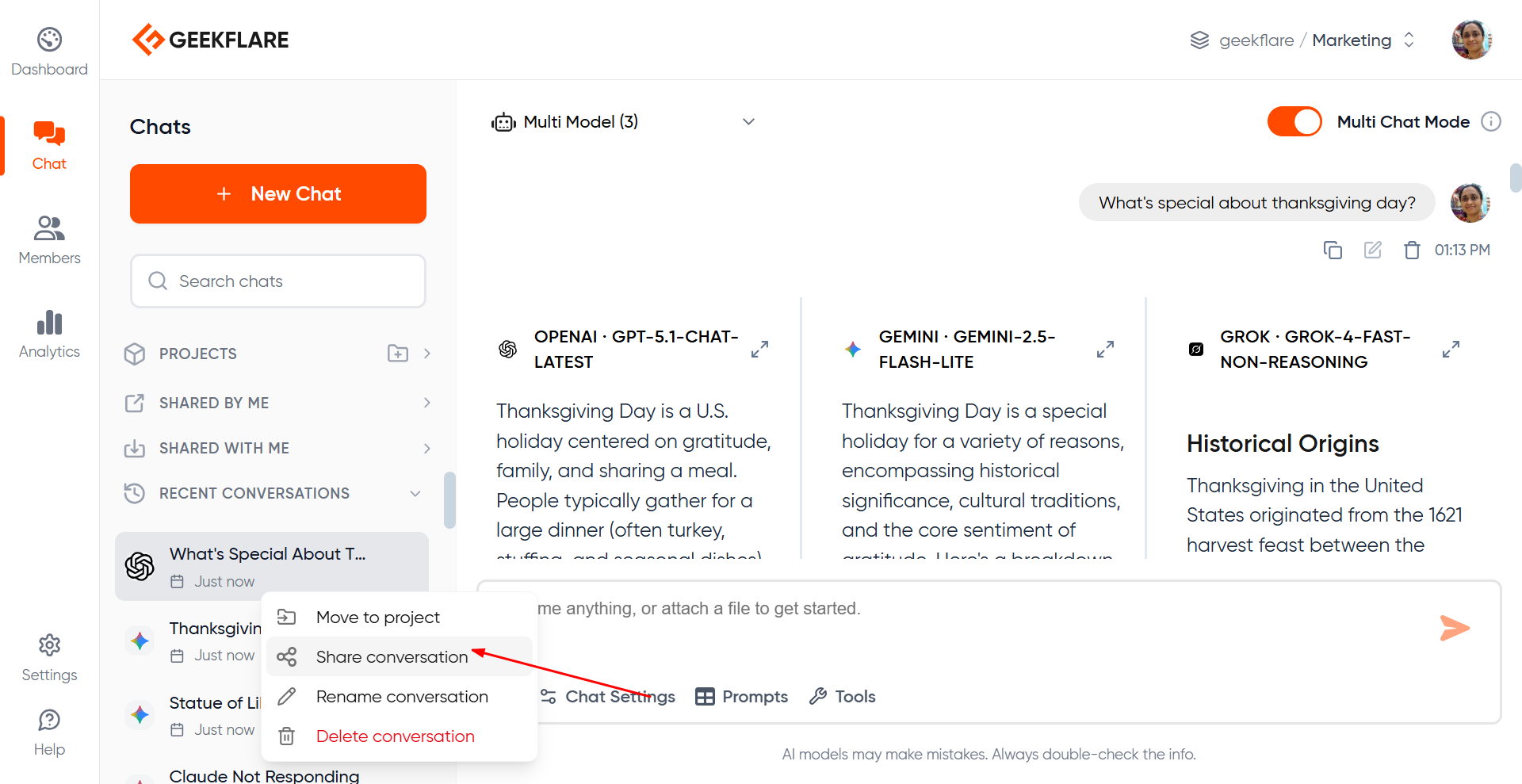
Chats can be shared in multiple ways depending on your plan. To share, click the 3 dots next to your conversation thread name and select ‘share conversation’.
## Sharing Chats
Chats can be shared in multiple ways depending on your plan. To share, click the 3 dots next to your conversation thread name and select ‘share conversation’.
 You are presented with 3 options.
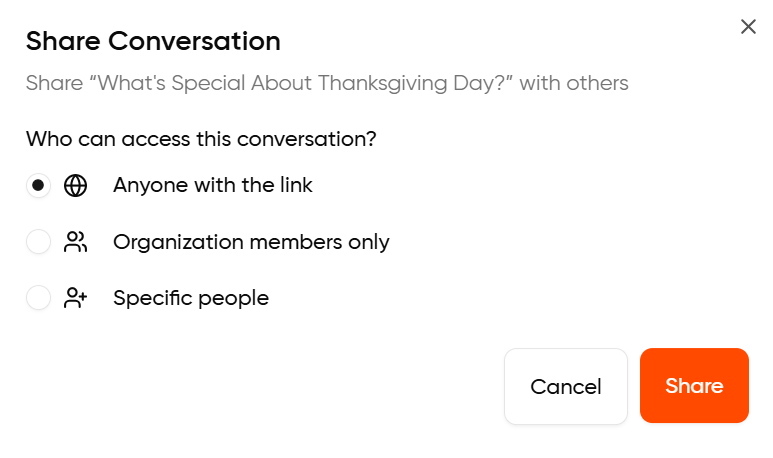 1. **Anyone with the link**: Generate a publicly viewable link accessible to anyone. This option is available in all plans.
2. **Share with Organization members:** Make the chat viewable by everyone in the org (Business plan and above).
3. **Share with Specific People:** Invite specific members by entering their email address (Business plan and above).
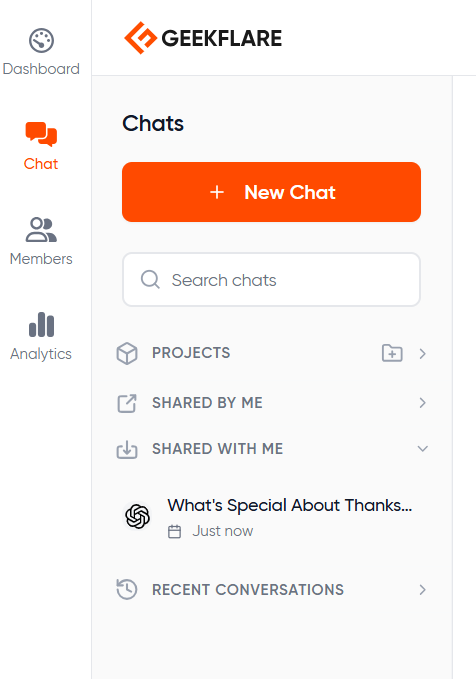
For options 2 and 3, the shared conversation will be visible to the other members under ‘shared with me’.
1. **Anyone with the link**: Generate a publicly viewable link accessible to anyone. This option is available in all plans.
2. **Share with Organization members:** Make the chat viewable by everyone in the org (Business plan and above).
3. **Share with Specific People:** Invite specific members by entering their email address (Business plan and above).
For options 2 and 3, the shared conversation will be visible to the other members under ‘shared with me’.
 ### Permissions
* All shared chats are view-only
* To continue or modify the chat, the viewer must **fork** it and create their own copy
* Shared chats cannot be edited directly
### Creating a Publicly Shareable Chat Link
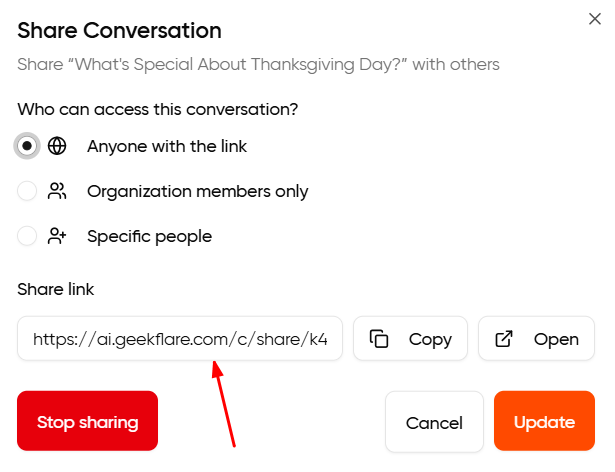
When you share a conversation by selecting a ‘anyone with the link’, you get a publicly shared link. You can choose stop sharing the thread when you wish.
### Permissions
* All shared chats are view-only
* To continue or modify the chat, the viewer must **fork** it and create their own copy
* Shared chats cannot be edited directly
### Creating a Publicly Shareable Chat Link
When you share a conversation by selecting a ‘anyone with the link’, you get a publicly shared link. You can choose stop sharing the thread when you wish.
 ### How to ‘Fork’ from a Shared Chat Link?
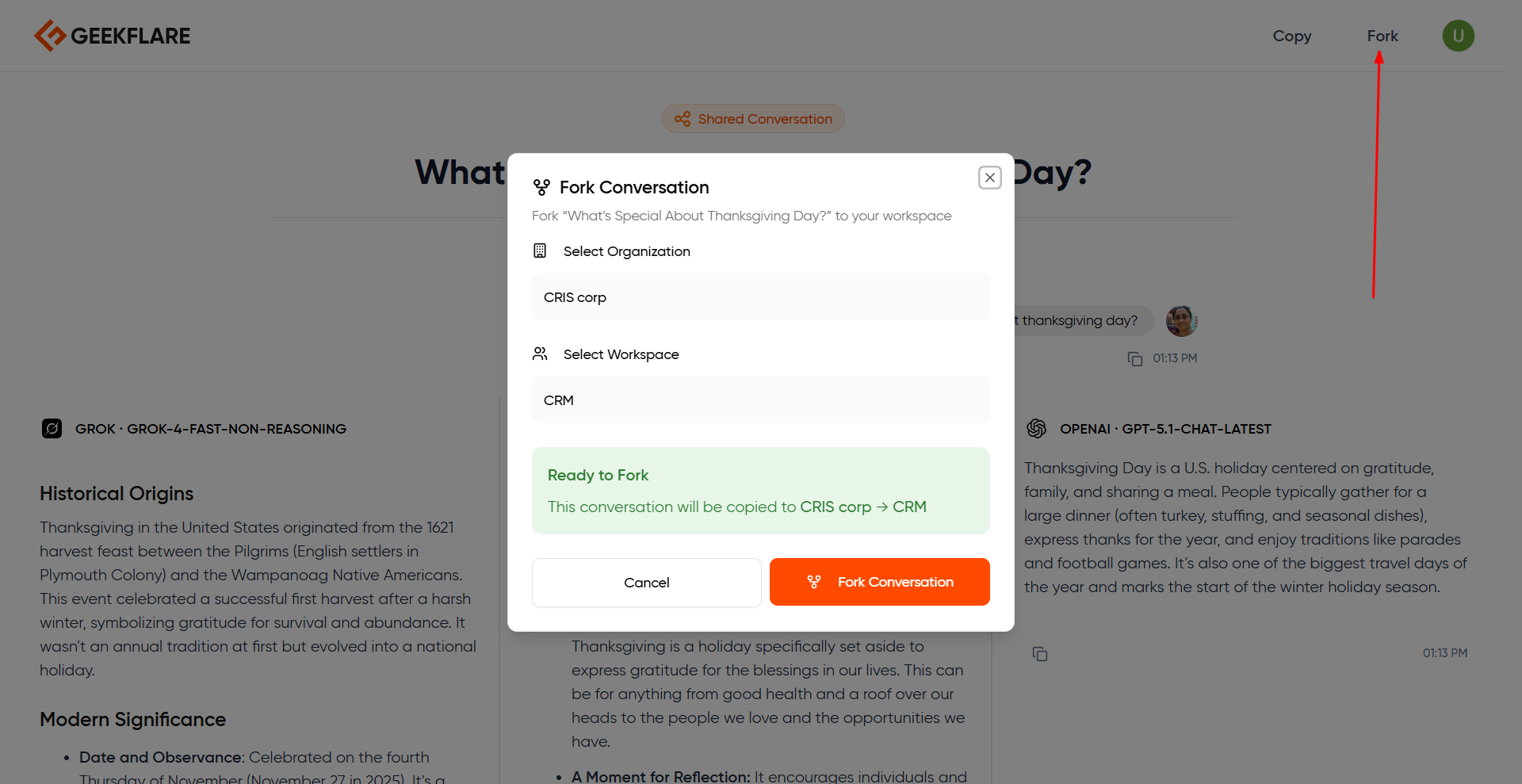
If you receive a shared chat thread or are invited to view a publicly shared link, open the thread and select the ‘fork’ option. Select the workspace into which you would like to fork this conversation to and continue chatting as usual.
### How to ‘Fork’ from a Shared Chat Link?
If you receive a shared chat thread or are invited to view a publicly shared link, open the thread and select the ‘fork’ option. Select the workspace into which you would like to fork this conversation to and continue chatting as usual.
 ## How to perform web search?
Select ‘tools’ and turn on the web search option below the prompt box. When you type in a prompt with this feature turned on, you will receive web search results in the response. Use this feature when you need recent data and don’t want to be limited by the model’s training cutoff date.
## How to perform web search?
Select ‘tools’ and turn on the web search option below the prompt box. When you type in a prompt with this feature turned on, you will receive web search results in the response. Use this feature when you need recent data and don’t want to be limited by the model’s training cutoff date.
 You can click ‘view all’ to view all the pages on the right side.
 ## How to perform Deep Research?
Use Deep Research models offered on Geekflare AI. Currently the Deep Research models offered are: OpenAI's o3-Deep Research, o4 mini Deep Research and Perplexity's Sonar Deep Research.
The Deep Research Settings option will be visible below the prompt box when you select a Deep Reasearch model.
### Deep Research with OpenAI
In the case of OpenAI models, you have the option to filter domains in your result, that is a list of domains from which you want the research to be performed.
## How to perform Deep Research?
Use Deep Research models offered on Geekflare AI. Currently the Deep Research models offered are: OpenAI's o3-Deep Research, o4 mini Deep Research and Perplexity's Sonar Deep Research.
The Deep Research Settings option will be visible below the prompt box when you select a Deep Reasearch model.
### Deep Research with OpenAI
In the case of OpenAI models, you have the option to filter domains in your result, that is a list of domains from which you want the research to be performed.
 ### Deep Research with Perplexity Sonar
In the case of Perplexity, you have multiple settings.
**Core settings:** Search Mode, Disable web search, enable search classifier, reasoning effort, and whether to include images and related questions in the result.
**Search filters:** Recency, thoroughness, user location, data filters and domain filters.
### Deep Research with Perplexity Sonar
In the case of Perplexity, you have multiple settings.
**Core settings:** Search Mode, Disable web search, enable search classifier, reasoning effort, and whether to include images and related questions in the result.
**Search filters:** Recency, thoroughness, user location, data filters and domain filters.
 Perplexity also offers advanced settings for deep research.
**Temperature:** Lower value gives more stable and consistent responses, while higher values give more creative and varied responses.
**Top P:** This refers to the range of selection of the 'next word'. A lower number results in consistent results and higher number results in creative and unusual results. The latter is good for brainstorming. Top P and Temperature go hand-in-hand.
**Top K:** It refers to how many next words should the model think about. A low number indicates limited and more likely options. A higher number indicates a larger pool of choices.
Perplexity also offers advanced settings for deep research.
**Temperature:** Lower value gives more stable and consistent responses, while higher values give more creative and varied responses.
**Top P:** This refers to the range of selection of the 'next word'. A lower number results in consistent results and higher number results in creative and unusual results. The latter is good for brainstorming. Top P and Temperature go hand-in-hand.
**Top K:** It refers to how many next words should the model think about. A low number indicates limited and more likely options. A higher number indicates a larger pool of choices.
 **Presence penalty:** This tells the model not to repeat the same topic. If you set a lower value, you may find the model talking about the same thing repetitively. If you set a higher value, the model will introduce new topics.
**Frequency penalty:** This tells the model not to repeat the same words. A lower value results in the model repeating the same words and a higher model results in the model using a wider range of vocabulary.
**Max Tokens:** This limits the model's maximum number of tokens used for responding. You can set it to 'auto' (let the model decide) or specify the number of tokens. Please note that if the Max Tokens is set at a very low value, the response may be terminated prematurely.
## How to Create Mermaid Diagrams
Type your prompt and ask the model to output a Mermaid diagram code block.
Example:
```html theme={null}
Create a mermaid diagram showing steps in a simple email drip campaign.
```
**Presence penalty:** This tells the model not to repeat the same topic. If you set a lower value, you may find the model talking about the same thing repetitively. If you set a higher value, the model will introduce new topics.
**Frequency penalty:** This tells the model not to repeat the same words. A lower value results in the model repeating the same words and a higher model results in the model using a wider range of vocabulary.
**Max Tokens:** This limits the model's maximum number of tokens used for responding. You can set it to 'auto' (let the model decide) or specify the number of tokens. Please note that if the Max Tokens is set at a very low value, the response may be terminated prematurely.
## How to Create Mermaid Diagrams
Type your prompt and ask the model to output a Mermaid diagram code block.
Example:
```html theme={null}
Create a mermaid diagram showing steps in a simple email drip campaign.
```
 You can directly view the mermaid diagram on Geekflare AI. You can also copy/paste the Mermaid code wherever needed and paste them into tools that support diagram rendering.
