> ## Documentation Index
> Fetch the complete documentation index at: https://docs.geekflare.com/llms.txt
> Use this file to discover all available pages before exploring further.
# Projects
> Create projects to organize your conversations and collaborate with your team.
## Understanding Projects
A **Project** is a dedicated container within your Workspace that holds a collection of chats and shared AI context. It allows you to segment your work by client, product, or internal initiative.
Projects make it easy to:
* Keep client work or distinct topics completely isolated.
* Apply project-level instructions (such as brand voice or coding guidelines) that automatically apply to every chat in the project.
* Switch between different workstreams without losing your mental place.
* Invite teammates to work on shared initiatives within the project.
Projects exist at the workspace level.
 ## How to Create a Project
You can create projects within a Workspace to segment your work.
1. Navigate to the Workspace where you want to add the project.
2. In the sidebar, locate the **Projects** section.
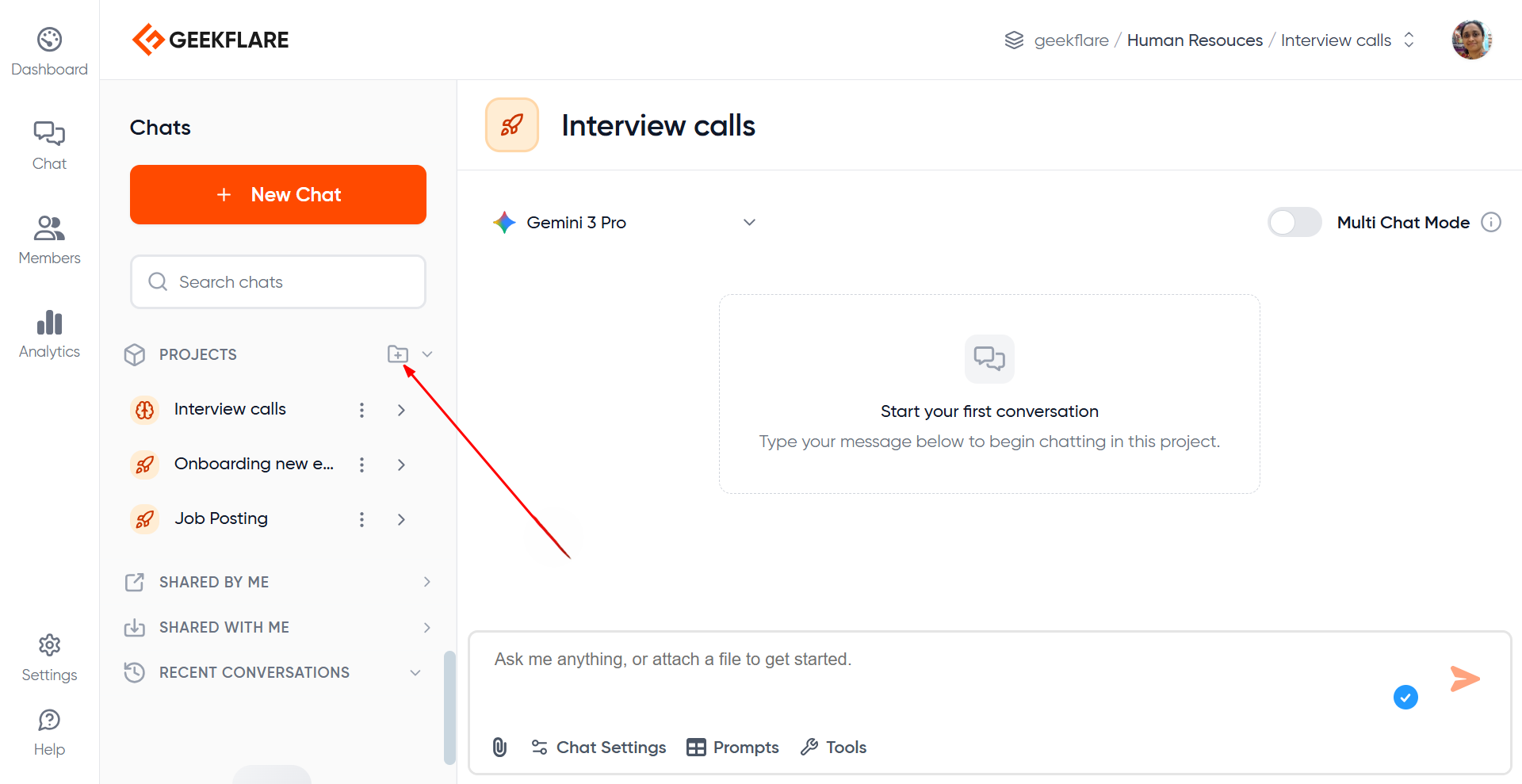
3. Click Create Project (the + icon).
## How to Create a Project
You can create projects within a Workspace to segment your work.
1. Navigate to the Workspace where you want to add the project.
2. In the sidebar, locate the **Projects** section.
3. Click Create Project (the + icon).
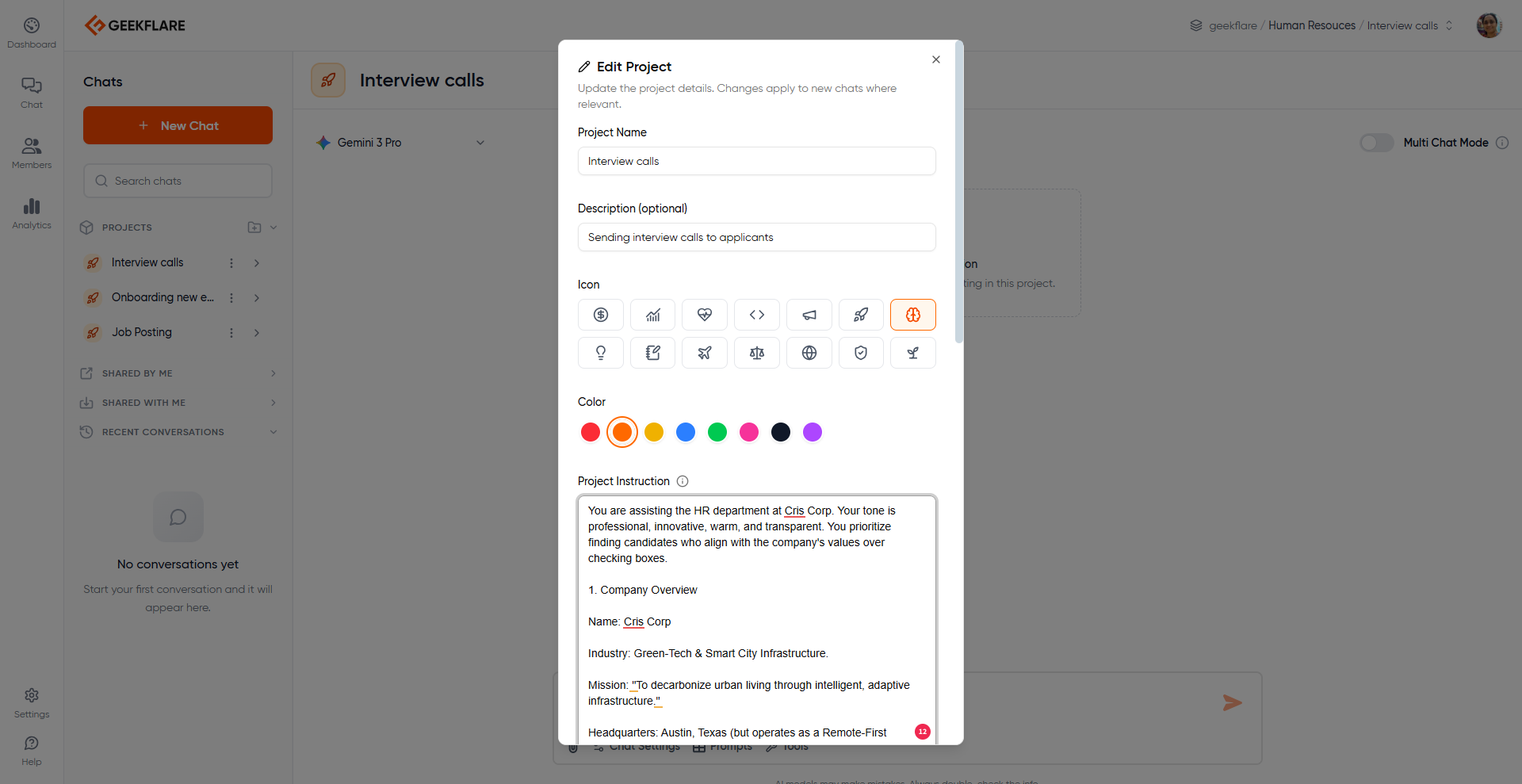
 4. Configure your Project:
Name: Give your project a clear title.
Description: Briefly explain the project's goal.
Instructions (Context): Optional. Define specific rules or persona guidelines the AI should follow for all chats in this project.
4. Configure your Project:
Name: Give your project a clear title.
Description: Briefly explain the project's goal.
Instructions (Context): Optional. Define specific rules or persona guidelines the AI should follow for all chats in this project.
 5. Click `Create Project`.
Once created, your project will appear in the sidebar, ready for you to start conversations.
## What are Project Instructions?
Project Instructions serve as a shared brain for every conversation within a project. They act as a set of guidelines that are automatically applied to all new chats in that specific project.
Project Instructions are a block of context or guidelines that will be applied to chats inside that project.
You can use Instructions to define:
* Client background, company history, or product details.
* Brand guidelines (e.g., "Professional," "Witty," "Academic").
* Style preferences and terminology.
* Specific restrictions or topics to avoid ("Negative constraints").
Project Instruction feature ensures consistency. Instead of repeating `Act as a senior marketer` in every single chat, you set it once at the project level.
Instructions are scoped to the Project only and do not affect other projects in the Workspace.
## Switching Between Projects
When you switch projects:
* Project Instructions (if any) automatically become active
* The model uses the correct context for prompts inside that project
To switch:
1. Use the Project selector in the sidebar.
2. Choose a different project inside the same workspace.
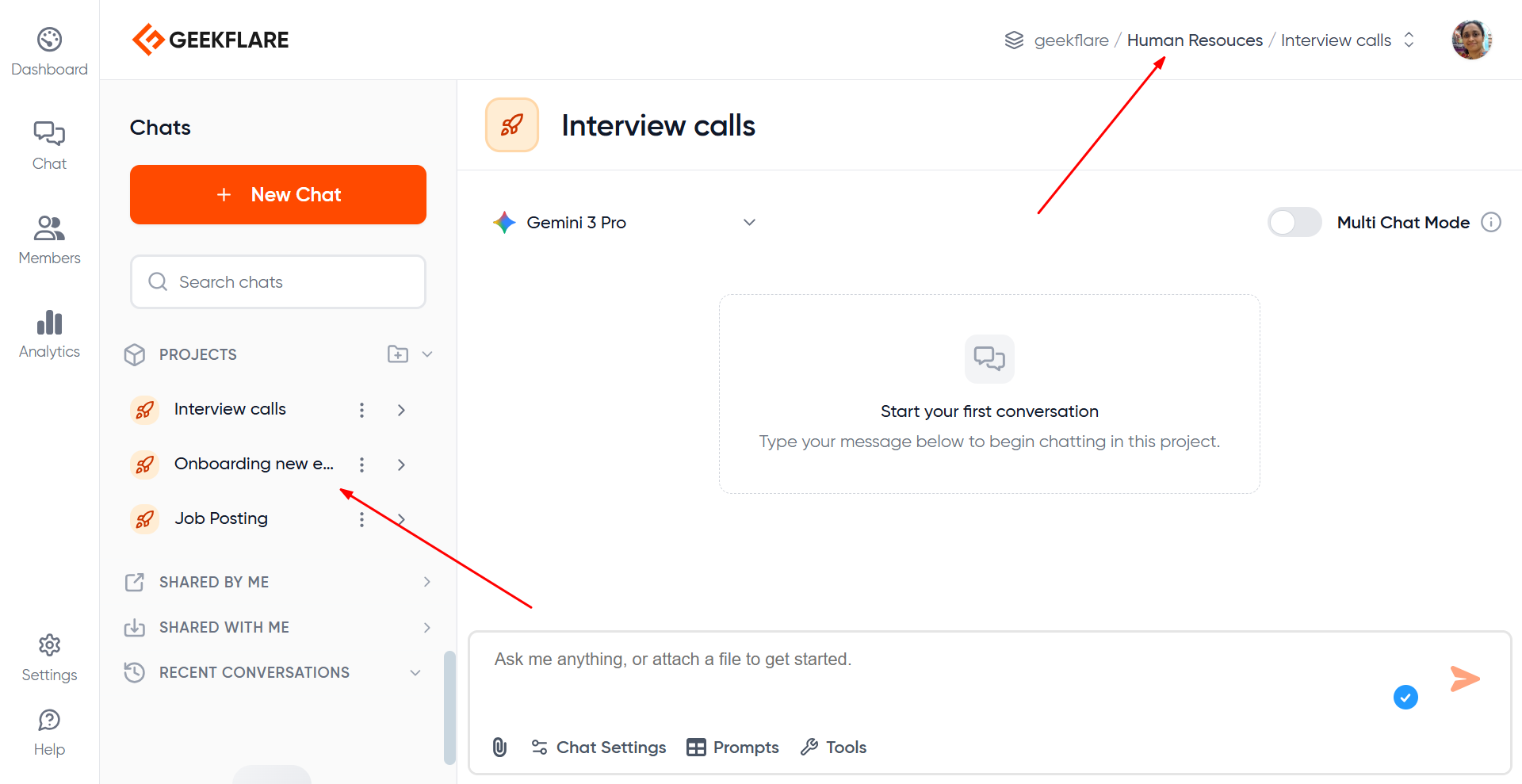
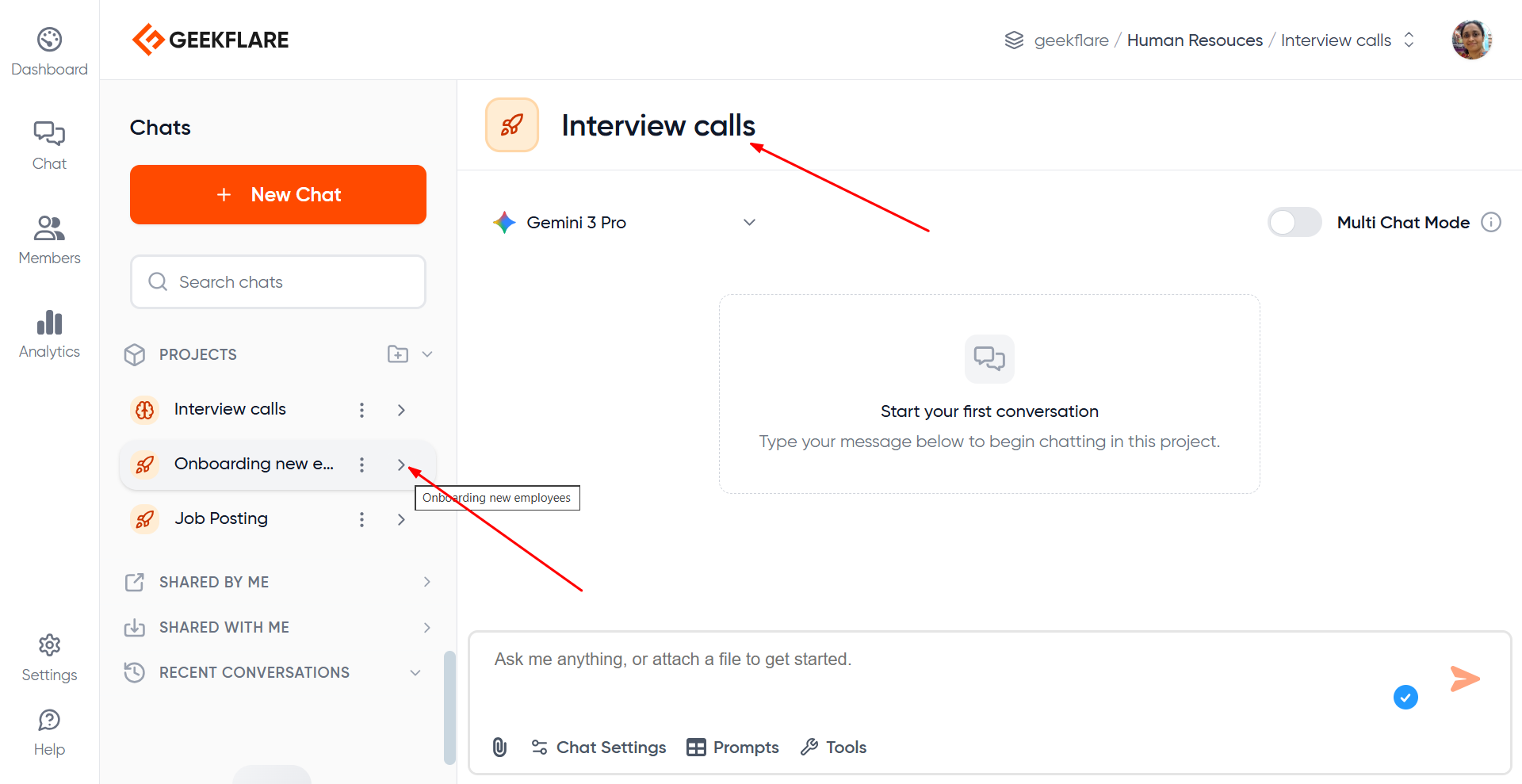
As you can see below, presently I am inside the Interview Calls project. To switch to ‘Onboarding new employees’ project, I just have to click the > beside that project.
5. Click `Create Project`.
Once created, your project will appear in the sidebar, ready for you to start conversations.
## What are Project Instructions?
Project Instructions serve as a shared brain for every conversation within a project. They act as a set of guidelines that are automatically applied to all new chats in that specific project.
Project Instructions are a block of context or guidelines that will be applied to chats inside that project.
You can use Instructions to define:
* Client background, company history, or product details.
* Brand guidelines (e.g., "Professional," "Witty," "Academic").
* Style preferences and terminology.
* Specific restrictions or topics to avoid ("Negative constraints").
Project Instruction feature ensures consistency. Instead of repeating `Act as a senior marketer` in every single chat, you set it once at the project level.
Instructions are scoped to the Project only and do not affect other projects in the Workspace.
## Switching Between Projects
When you switch projects:
* Project Instructions (if any) automatically become active
* The model uses the correct context for prompts inside that project
To switch:
1. Use the Project selector in the sidebar.
2. Choose a different project inside the same workspace.
As you can see below, presently I am inside the Interview Calls project. To switch to ‘Onboarding new employees’ project, I just have to click the > beside that project.
 ## Renaming a Project
Click the 3 dots beside a project name. Select 'Edit Project', change the name of the project to its new name and save the changes.
## Renaming a Project
Click the 3 dots beside a project name. Select 'Edit Project', change the name of the project to its new name and save the changes.
 ## Projects Sharing & Permissions
Projects in Geekflare AI feature granular access control, allowing you to control exactly who can view or collaborate on your chats.
Every project has three visibility settings:
### **1. Private (Default)**
* Only you (the creator) can access the project.
* Invisible to other workspace members.
### **2. Workspace Access**
* All members of the current workspace can access the project.
* Permissions can vary between view or edit depending on the configuration.
### **3. Specific Members**
* Restricted access for selected individuals.
* Invite members by name or email.
When adding specific members, you can assign them a role:
* **View**: Can read chats and project instructions, but cannot post messages or make changes.
* **Edit**: Can generate new messages, create chats, rename items, and modify project settings.
### **What happens when you share a project**
* All chats inside the project become visible to users who have access.
* Members with **Edit** can contribute to the same threads.
* Members with **View** can view everything but cannot modify chats.
* Sharing changes apply to the entire project, not just specific chats.
## Managing Multiple Clients Using Projects
Projects are ideal for consultants, or teams handling multiple client engagements.
Example structure:
* *Workspace: Client Work*
* Project: Client A – SEO
* Project: Client A – Product Pages
* Project: Client B – LinkedIn Content
* Project: Client C – Documentation
Benefits:
* Clear separation between clients
* No risk of mixing client context
* Each project can have its own tone, style, and instructions
* Shared team access within the workspace
* All related chats grouped neatly
This also works for internal workflows, such as:
* *Workspace: Marketing Team*
* Project: Blog Content
* Project: Social Media
* Project: Product Launch
* Project: Docs & Guides
### Multi-User Chat on the Same Thread
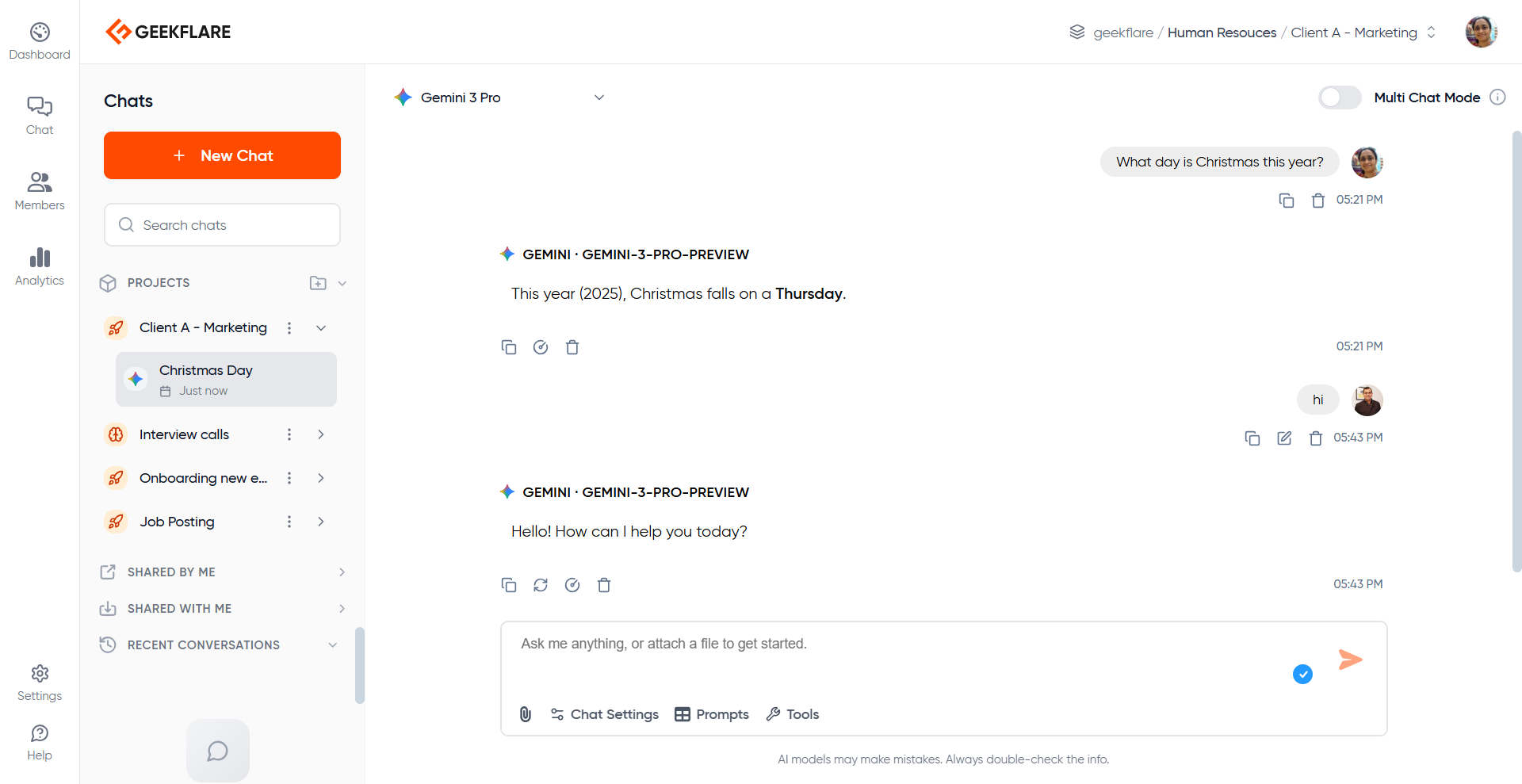
When a project is shared with **Edit** permissions, multiple members can work together inside the same chat thread in real time.
This is useful for teams who want to co-create content, review outputs together, or use the same thread for brainstorming, documentation, or client-specific work.
It’s like collaborating with your team, with an LLM as another team member! The model can answer to everyone’s questions.
Below, you can see 2 team members having a chat on the same thread with Gemini.
## Projects Sharing & Permissions
Projects in Geekflare AI feature granular access control, allowing you to control exactly who can view or collaborate on your chats.
Every project has three visibility settings:
### **1. Private (Default)**
* Only you (the creator) can access the project.
* Invisible to other workspace members.
### **2. Workspace Access**
* All members of the current workspace can access the project.
* Permissions can vary between view or edit depending on the configuration.
### **3. Specific Members**
* Restricted access for selected individuals.
* Invite members by name or email.
When adding specific members, you can assign them a role:
* **View**: Can read chats and project instructions, but cannot post messages or make changes.
* **Edit**: Can generate new messages, create chats, rename items, and modify project settings.
### **What happens when you share a project**
* All chats inside the project become visible to users who have access.
* Members with **Edit** can contribute to the same threads.
* Members with **View** can view everything but cannot modify chats.
* Sharing changes apply to the entire project, not just specific chats.
## Managing Multiple Clients Using Projects
Projects are ideal for consultants, or teams handling multiple client engagements.
Example structure:
* *Workspace: Client Work*
* Project: Client A – SEO
* Project: Client A – Product Pages
* Project: Client B – LinkedIn Content
* Project: Client C – Documentation
Benefits:
* Clear separation between clients
* No risk of mixing client context
* Each project can have its own tone, style, and instructions
* Shared team access within the workspace
* All related chats grouped neatly
This also works for internal workflows, such as:
* *Workspace: Marketing Team*
* Project: Blog Content
* Project: Social Media
* Project: Product Launch
* Project: Docs & Guides
### Multi-User Chat on the Same Thread
When a project is shared with **Edit** permissions, multiple members can work together inside the same chat thread in real time.
This is useful for teams who want to co-create content, review outputs together, or use the same thread for brainstorming, documentation, or client-specific work.
It’s like collaborating with your team, with an LLM as another team member! The model can answer to everyone’s questions.
Below, you can see 2 team members having a chat on the same thread with Gemini.