What is an Organization?
The Organization is the highest-level structure in Geekflare AI. It defines how your team is grouped, how access is managed, and which resources and settings are shared across members. Every account can belong to multiple organizations, and each organization can contain one or more workspaces depending on the subscription plan. An organization represents a team, company, or individual setup inside Geekflare. Within an organization, users can collaborate, share access to AI models through API keys, manage workspaces, and control permissions.Organization Structure
- A single user account can belong to multiple organizations. For example, you may be the Owner of your personal organization while also being a Member or Admin in a client’s or employer’s organization.
- Each organization can have multiple workspaces (Business plan and above). Pro plan: 1 workspace Business and higher: Unlimited workspaces
- Workspaces belong to an organization and inherit its members, roles, and visibility rules.
Roles and Permissions
Geekflare currently supports three organization-level roles:- Owner (1 per Org)
- Admin (Multiple per Org)
- Member (Multiple per Org)
What is the Default Organization?
When a new user signs up for Geekflare AI as an individual (For personal use), the platform automatically creates a default organization for them. This organization is linked to their personal account and gives them full control as the Owner.
How to create an Organization for your Business?
After you sign up with Geekflare AI and verify your email, you will be able to create an Organization by selecting the ‘For Business/Teams’ option.

How to Switch Between Organizations?
Click the Geekflare Logo on top left to view a list of the organizations (including personal) you are part of, along with your role within that organization. You can click the organization you wish to enter.
How to View Members in an Organization?
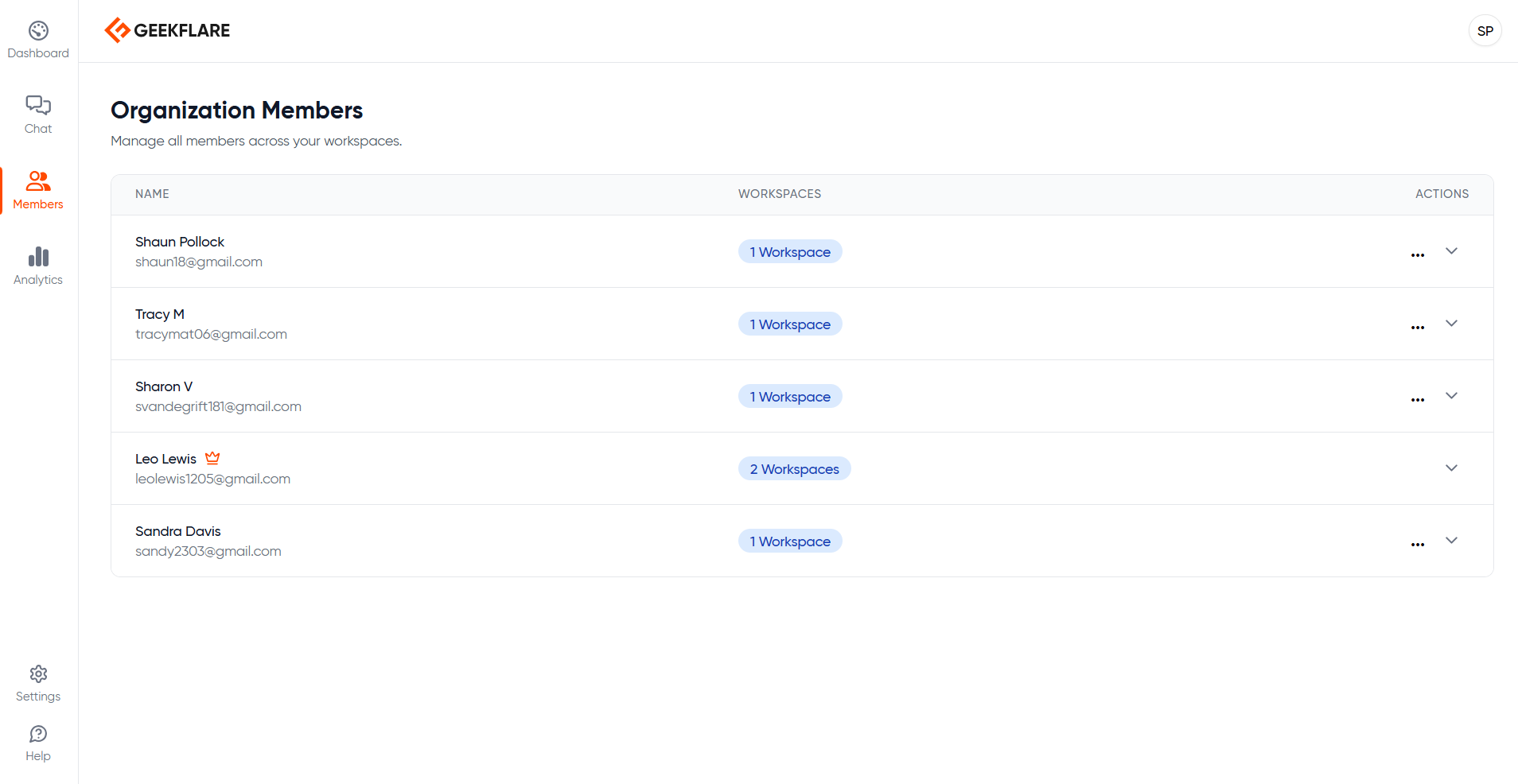
Click the members icon on the left side to view all the members in your organization, their roles and the workspaces they are part of.