Understanding Projects
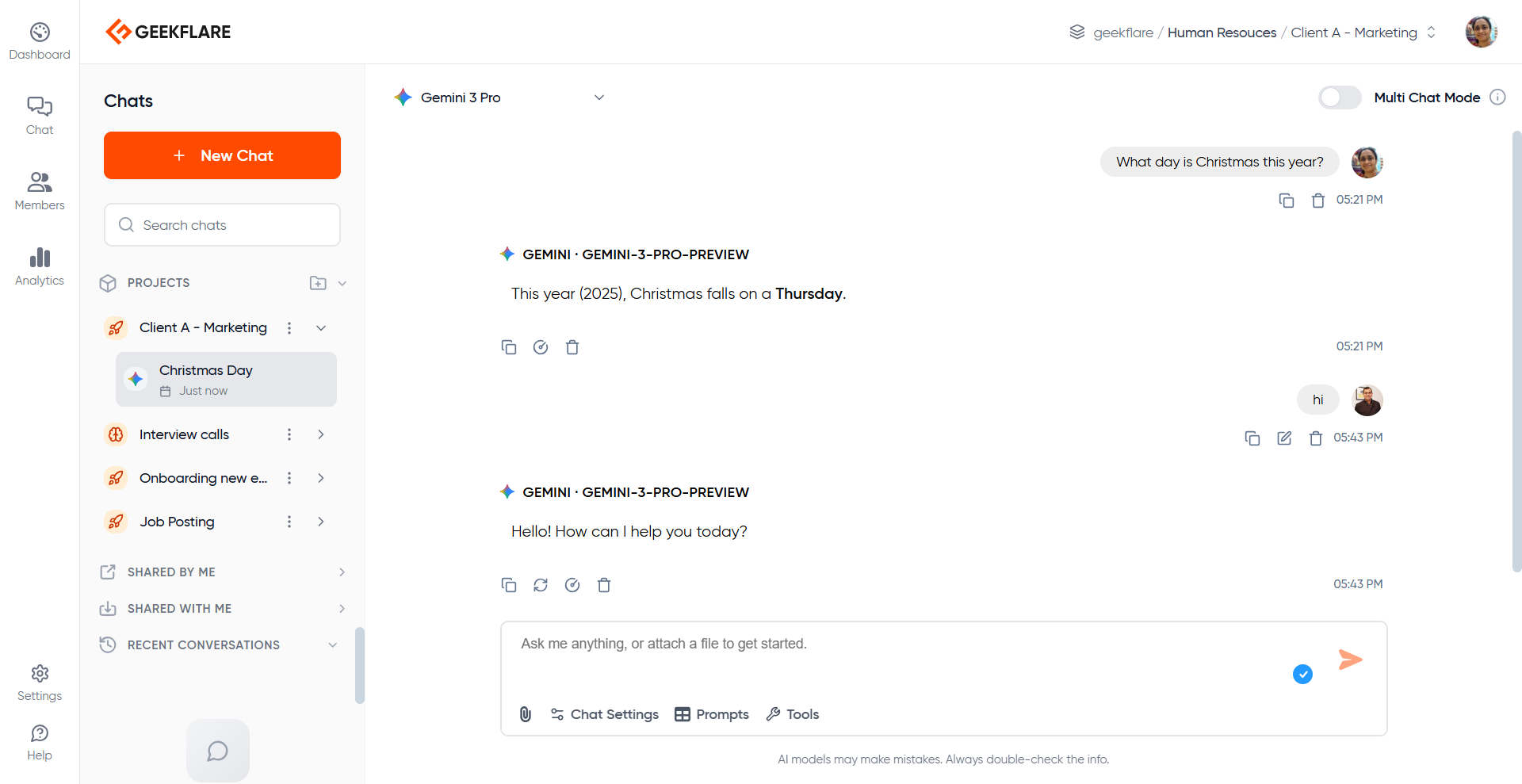
A Project is a dedicated container within your Workspace that holds a collection of chats and shared AI context. It allows you to segment your work by client, product, or internal initiative. Projects make it easy to:- Keep client work or distinct topics completely isolated.
- Apply project-level instructions (such as brand voice or coding guidelines) that automatically apply to every chat in the project.
- Switch between different workstreams without losing your mental place.
- Invite teammates to work on shared initiatives within the project.
Projects exist at the workspace level.
How to Create a Project
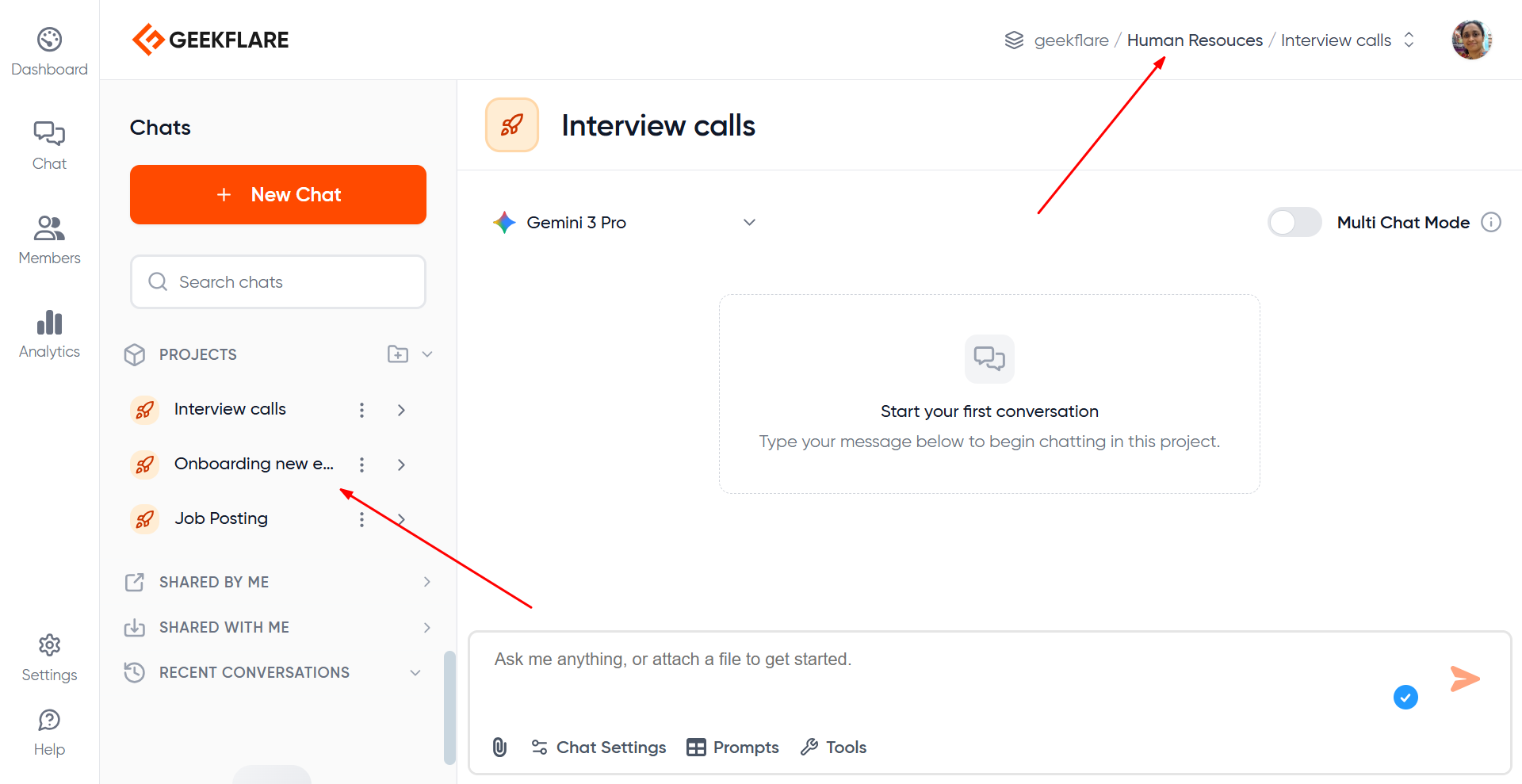
You can create projects within a Workspace to segment your work.- Navigate to the Workspace where you want to add the project.
- In the sidebar, locate the Projects section.
-
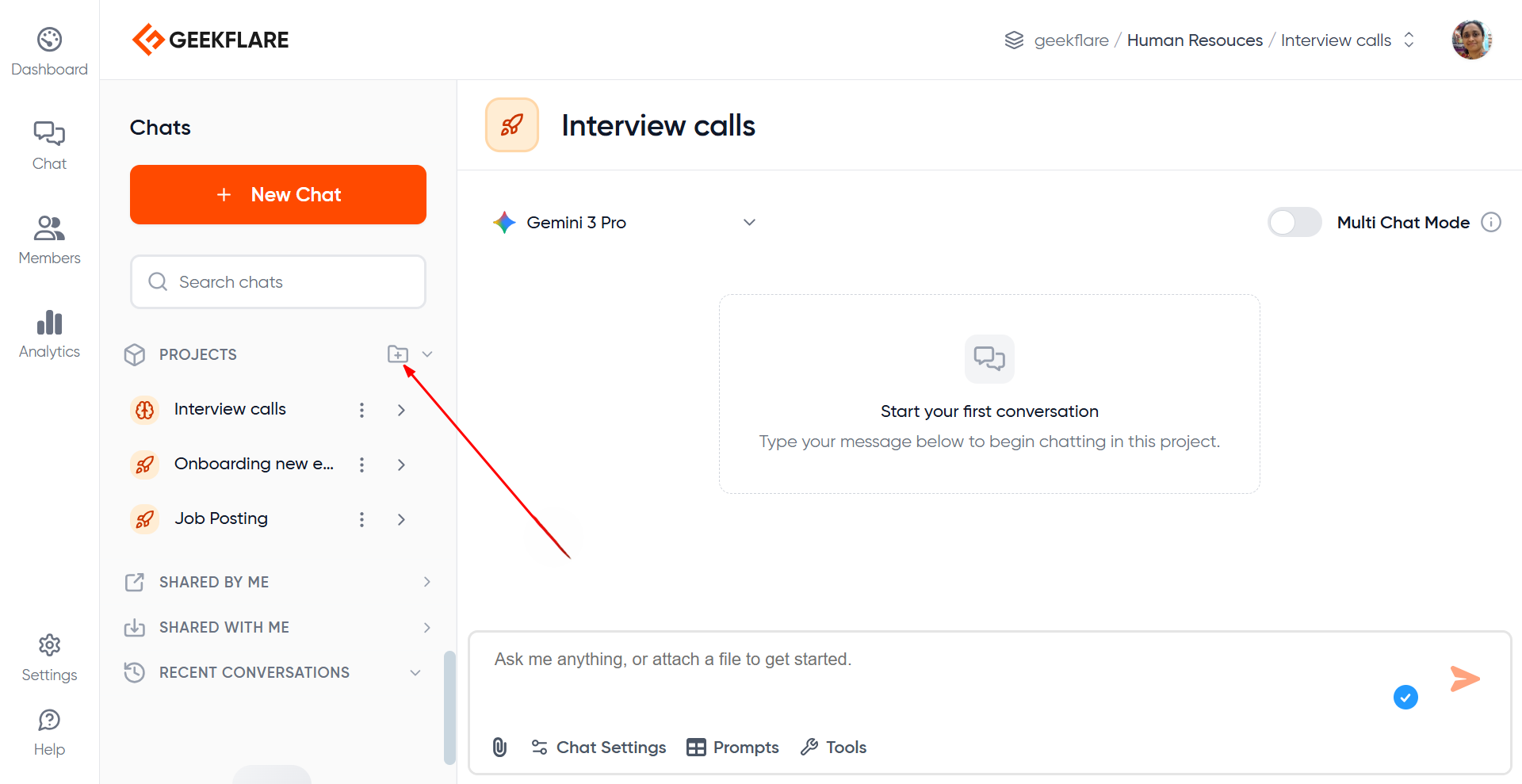
Click Create Project (the + icon).
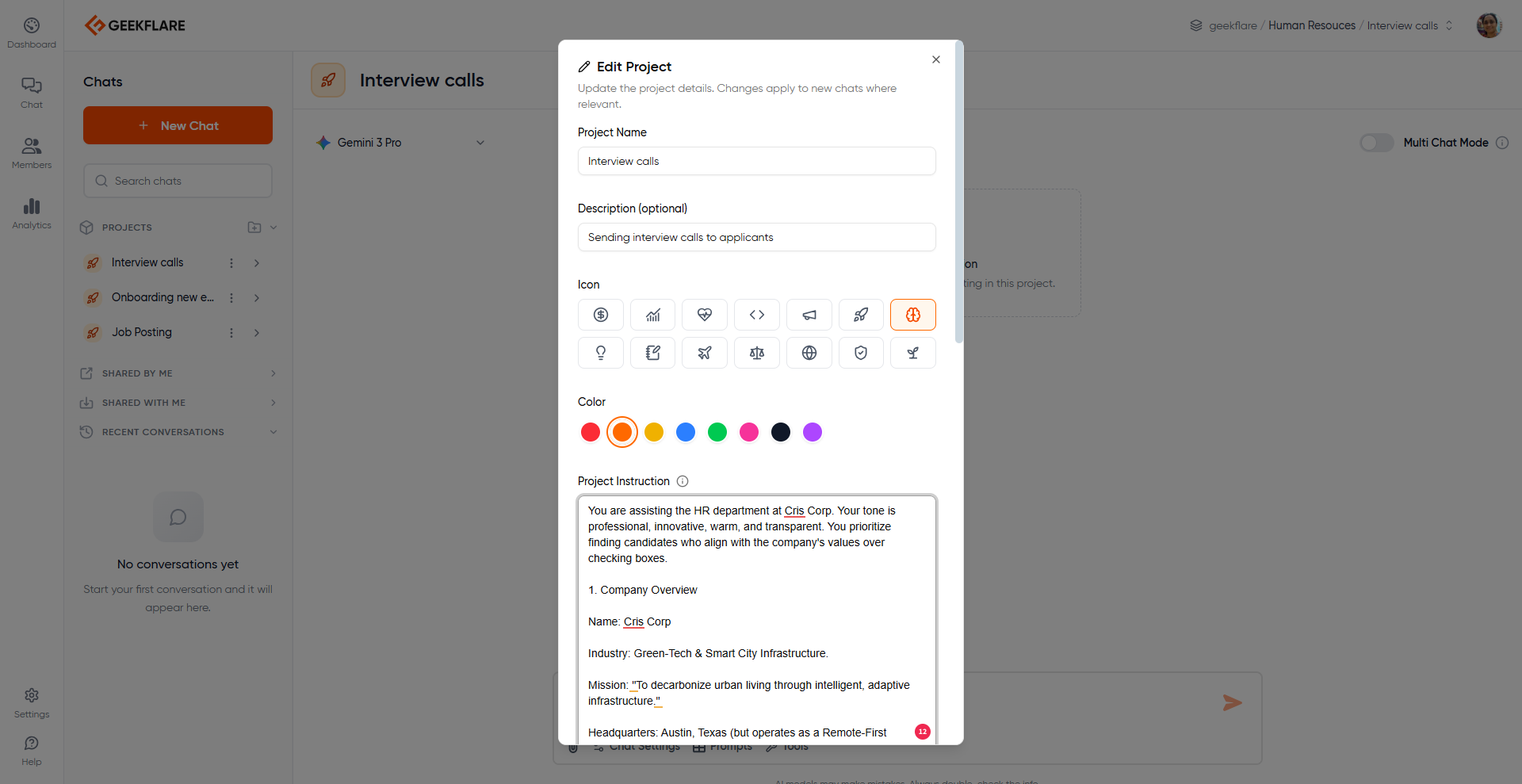
- Configure your Project: Name: Give your project a clear title. Description: Briefly explain the project’s goal. Instructions (Context): Optional. Define specific rules or persona guidelines the AI should follow for all chats in this project.
- Click
Create Project.
What are Project Instructions?
Project Instructions serve as a shared brain for every conversation within a project. They act as a set of guidelines that are automatically applied to all new chats in that specific project. Project Instructions are a block of context or guidelines that will be applied to chats inside that project. You can use Instructions to define:- Client background, company history, or product details.
- Brand guidelines (e.g., “Professional,” “Witty,” “Academic”).
- Style preferences and terminology.
- Specific restrictions or topics to avoid (“Negative constraints”).
Act as a senior marketer in every single chat, you set it once at the project level.
Instructions are scoped to the Project only and do not affect other projects in the Workspace.
Switching Between Projects
When you switch projects:- Project Instructions (if any) automatically become active
- The model uses the correct context for prompts inside that project
- Use the Project selector in the sidebar.
- Choose a different project inside the same workspace.
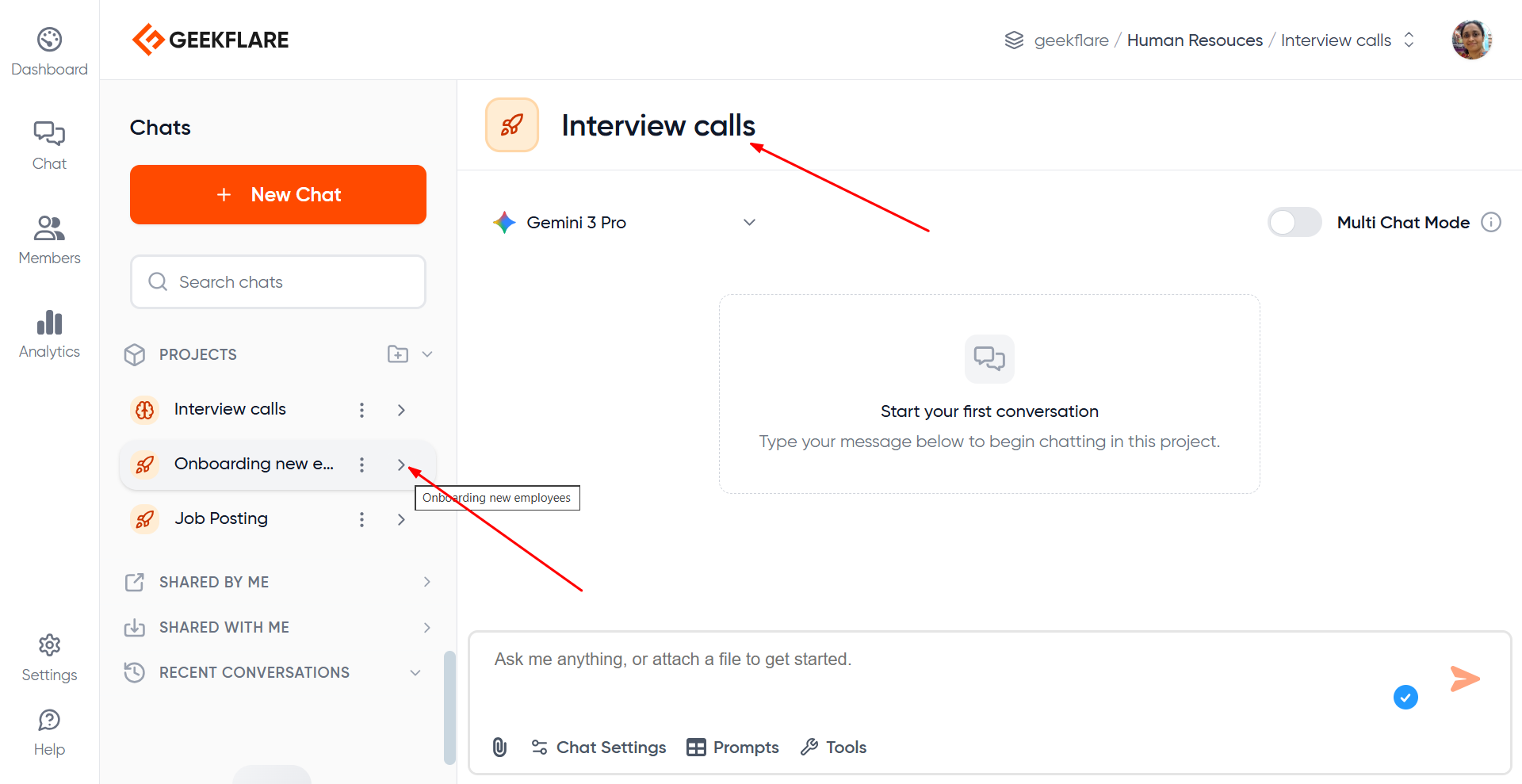
Renaming a Project
Click the 3 dots beside a project name. Select ‘Edit Project’, change the name of the project to its new name and save the changes.
Projects Sharing & Permissions
Projects in Geekflare AI feature granular access control, allowing you to control exactly who can view or collaborate on your chats. Every project has three visibility settings:1. Private (Default)
- Only you (the creator) can access the project.
- Invisible to other workspace members.
2. Workspace Access
- All members of the current workspace can access the project.
- Permissions can vary between view or edit depending on the configuration.
3. Specific Members
- Restricted access for selected individuals.
- Invite members by name or email.
- View: Can read chats and project instructions, but cannot post messages or make changes.
- Edit: Can generate new messages, create chats, rename items, and modify project settings.
What happens when you share a project
- All chats inside the project become visible to users who have access.
- Members with Edit can contribute to the same threads.
- Members with View can view everything but cannot modify chats.
- Sharing changes apply to the entire project, not just specific chats.
Managing Multiple Clients Using Projects
Projects are ideal for consultants, or teams handling multiple client engagements. Example structure:- Workspace: Client Work
- Project: Client A – SEO
- Project: Client A – Product Pages
- Project: Client B – LinkedIn Content
- Project: Client C – Documentation
- Clear separation between clients
- No risk of mixing client context
- Each project can have its own tone, style, and instructions
- Shared team access within the workspace
- All related chats grouped neatly
- Workspace: Marketing Team
- Project: Blog Content
- Project: Social Media
- Project: Product Launch
- Project: Docs & Guides
Multi-User Chat on the Same Thread
When a project is shared with Edit permissions, multiple members can work together inside the same chat thread in real time. This is useful for teams who want to co-create content, review outputs together, or use the same thread for brainstorming, documentation, or client-specific work. It’s like collaborating with your team, with an LLM as another team member! The model can answer to everyone’s questions. Below, you can see 2 team members having a chat on the same thread with Gemini.