

What is Workspace
A Workspace is an AI conversation space within your Geekflare AI account, for a specific team or business function. Each Workspace operates independently, with its own conversations, permissions, and analytics.
Workspace Roles
Workspace support flexible user management to align with your team’s needs. Admins can ensure that access is limited to relevant areas. Roles such asOwner, Admin, or Member define what actions users can take, from configuring settings to viewing conversations.


Creating Workspace
On Dashboard, clickCreate Workspace, give it a unique name and URL slug.
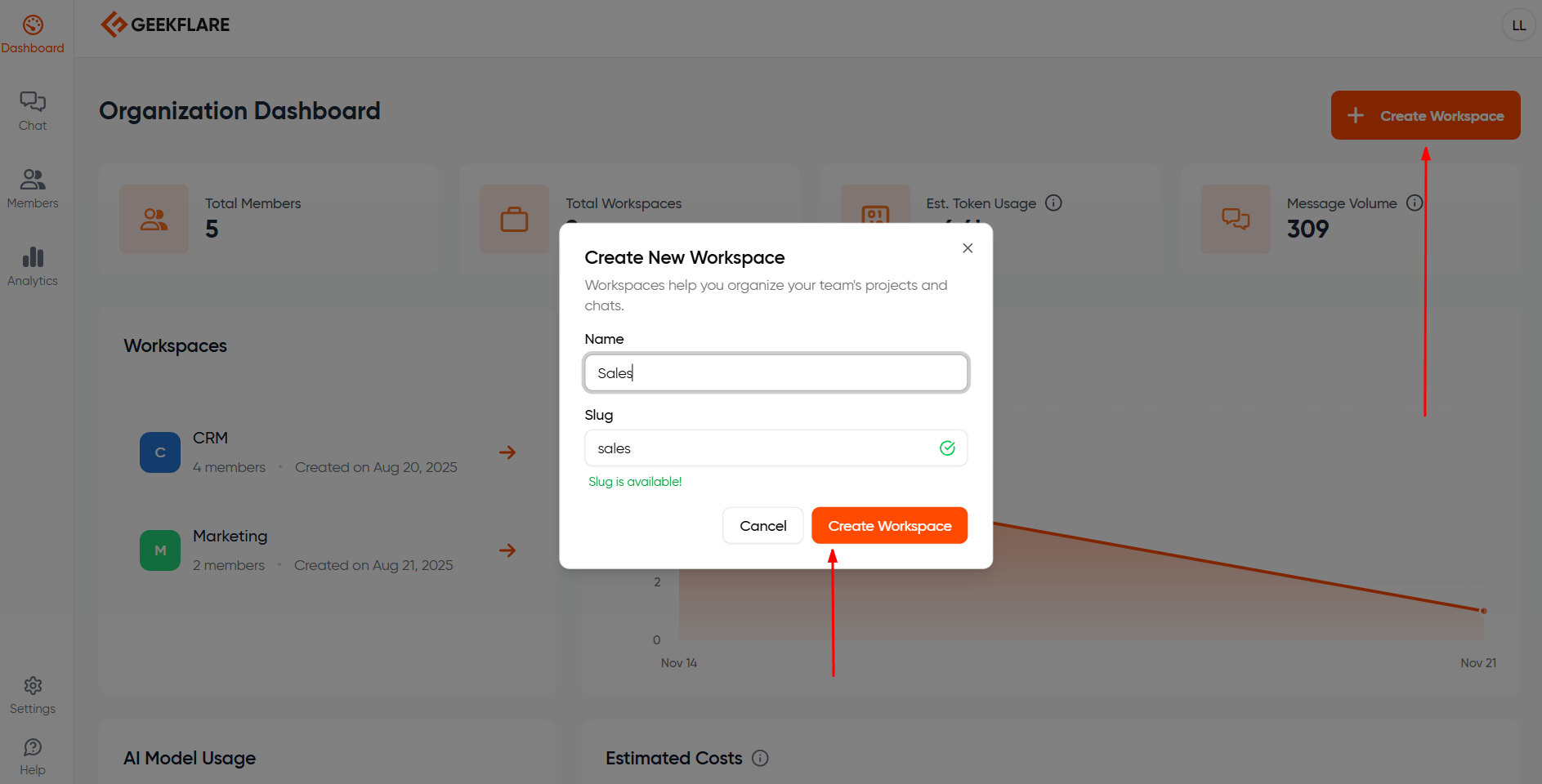
Please note: You can create multiple Workspaces in Business or Enterprise plan. If you are on the Pro plan, you will only have 1 default workspace.
Inviting members to a workspace
ClickMembers on the left side to view all the members in your organization. Then click Invite Members and add to respective workspaces to invite a new member to a workspace.

How to Join a Workspace I am invited to?
Click theView Invites option by clicking your profile pic.


Managing Permissions
You can assign permissions if you are anOwner or Admin.
-
Click
Membersfrom the left side menu. Select the member whose permissions you would like to update. - Under workspace, click the 3 dots.
- You can update the member’s role to admin/member, invite them to a workspace, or even remove them from the organization.

How to Switch Between Workspaces?
Switching between workspaces is simple. While you are in the chat window, you can see the current organization/workspace at the top right corner. Click it to switch to another workspace.

Access Control
Workspace Visibility
- Owners and Admins can see all workspaces in the organization.
- Members can only see workspaces they are part of.
Workspace Creation and Deletion
- Only Admins and Owners can create or delete workspaces.
Workspace Privacy
- Workspaces are private to their members.
- Joining a workspace allows a user to view all shared projects and shared chats inside it.
Chat Visibility
- A chat is visible to:
- The creator, and
- Members it has been explicitly shared with
- Workspaces do not automatically grant visibility to all chats.