What is a Prompt?
A prompt is the specific instruction you give the AI to guide its behavior. The quality of the output depends heavily on the clarity of the prompt. Well-structured prompts ensure the AI understands your intent and eliminates ambiguity.
Repetitive tasks shouldn’t require repetitive typing. Instead of rewriting instructions or copying them from external notes, the Prompt Library allows you to save your prompts. This ensures consistency across your team.
Core Features
The Prompt Library is ready to use from individual use to team-wide collaboration.
- Jumpstart with our curated library of over 275 expert prompts. Covering categories like Marketing, Human Resources, SEO, and Project Managament, these pre-built templates help you get high-quality results without needing to craft instructions from scratch.
- Create your own reusable prompts to your specific needs.
- Make your prompts flexible by adding
variables within the instructions.
When you select a prompt with variables, Chat Interface will ask you to fill in the specific details (e.g., [Topic], [Tone]) before inserting the final text into the chat. This allows you to use the same structure for infinite variations.
-
Standardize your team’s output by sharing your best prompts.
- Workspace Sharing: Make prompts available to your team members within the workspace.
- Organization-Wide: Publish prompts to the entire organization to ensure consistency across all departments.
How can you access the Prompt Library?
The prompt library can be accessed by clicking the Prompts icon in the chat input box.

Using Geekflare’s Readymade Prompts
In our ready-to-use prompt library, we have covered most of the common business functions like HR, Finance, Sales, Marketing, Customer Support and more.
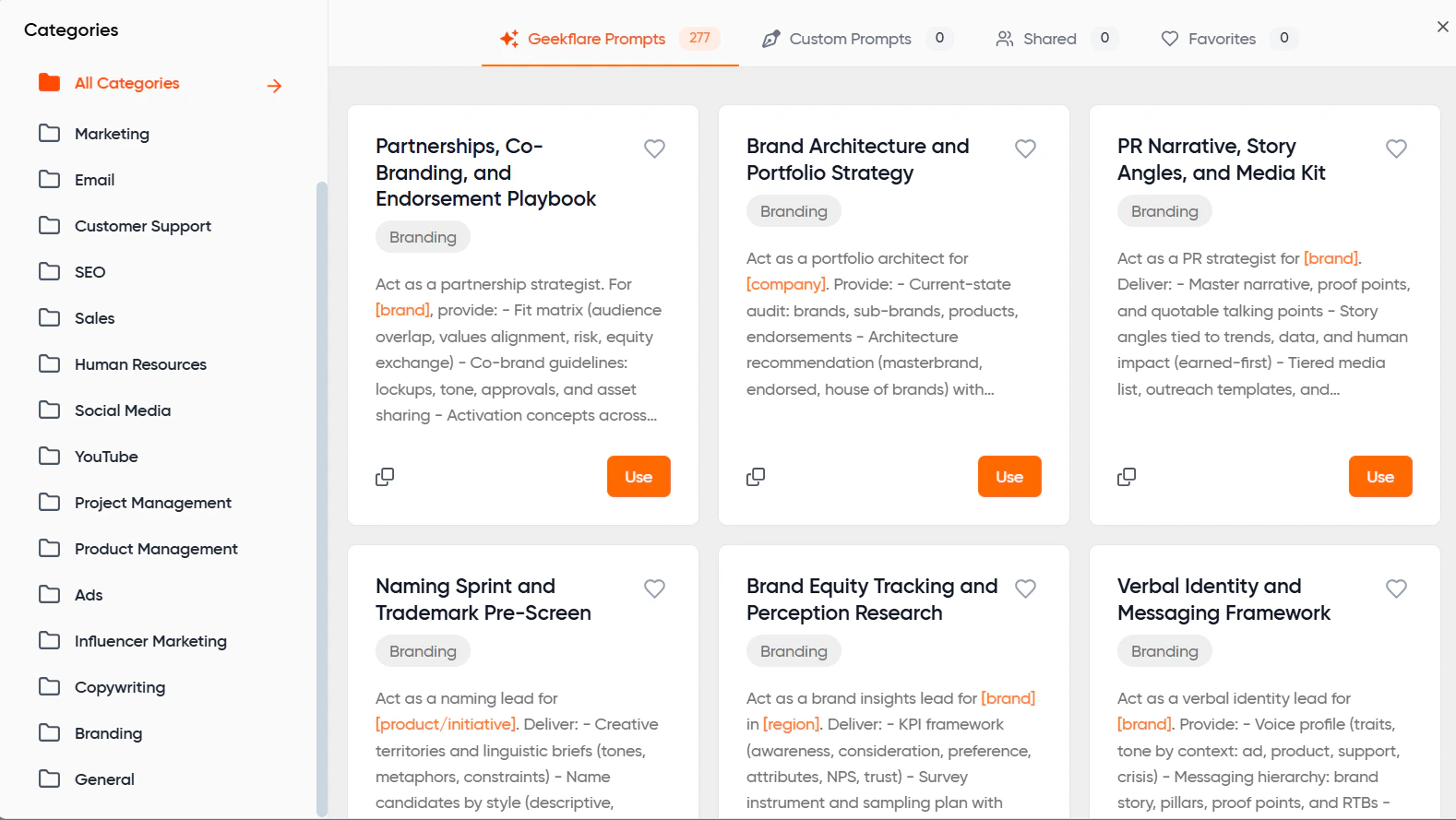 Just select the prompt you want to use, fill in your company-specific variables, and select your preferred model to respond. It’s that simple.
Let’s look at an example. Suppose you are a sales executive, trying to build a cold email sequence. Select
Just select the prompt you want to use, fill in your company-specific variables, and select your preferred model to respond. It’s that simple.
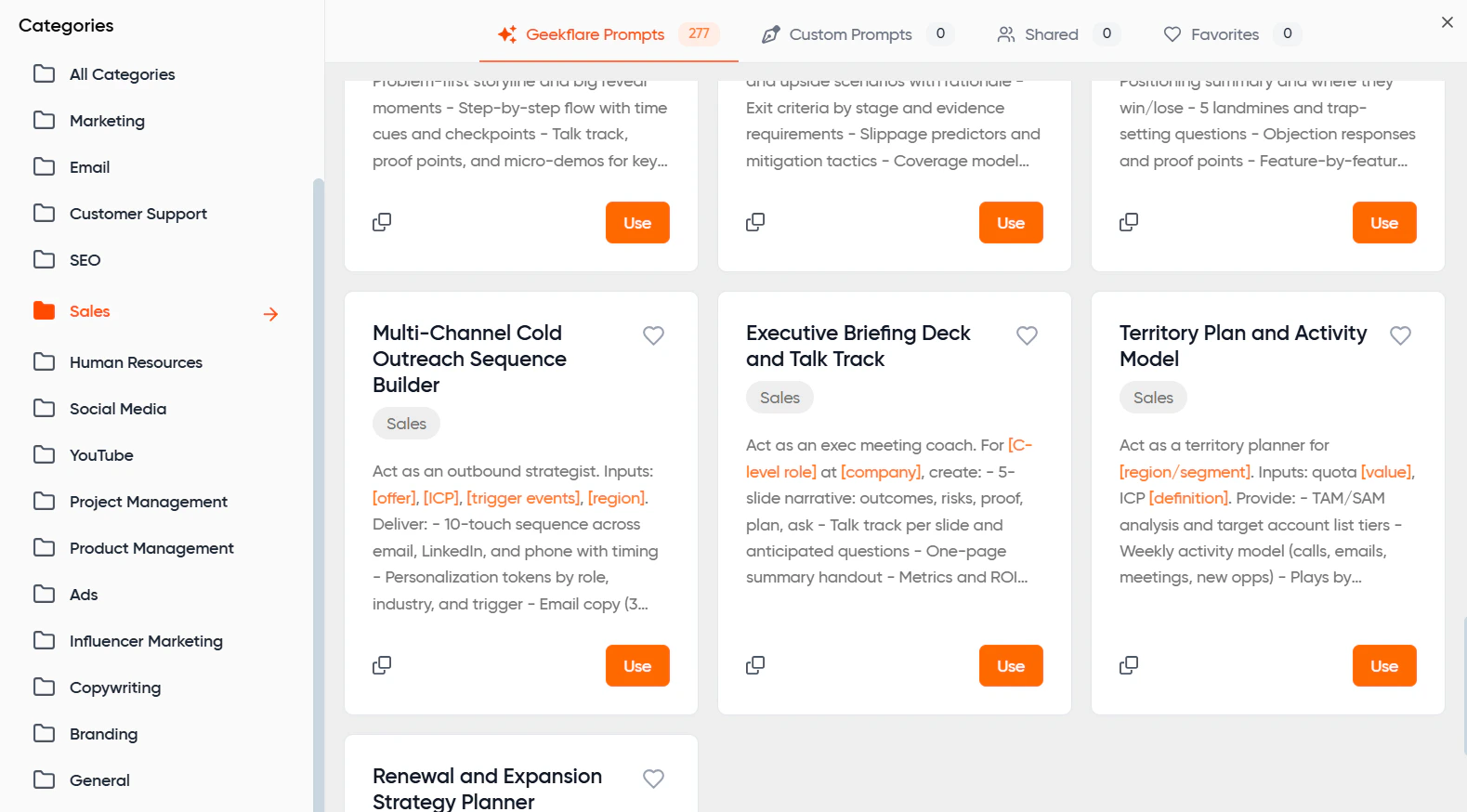
Let’s look at an example. Suppose you are a sales executive, trying to build a cold email sequence. Select Sales from the menu on the left and multichannel cold outreach sequence builder prompt from the library and click Use.
 You will be prompted to fill in these variables.
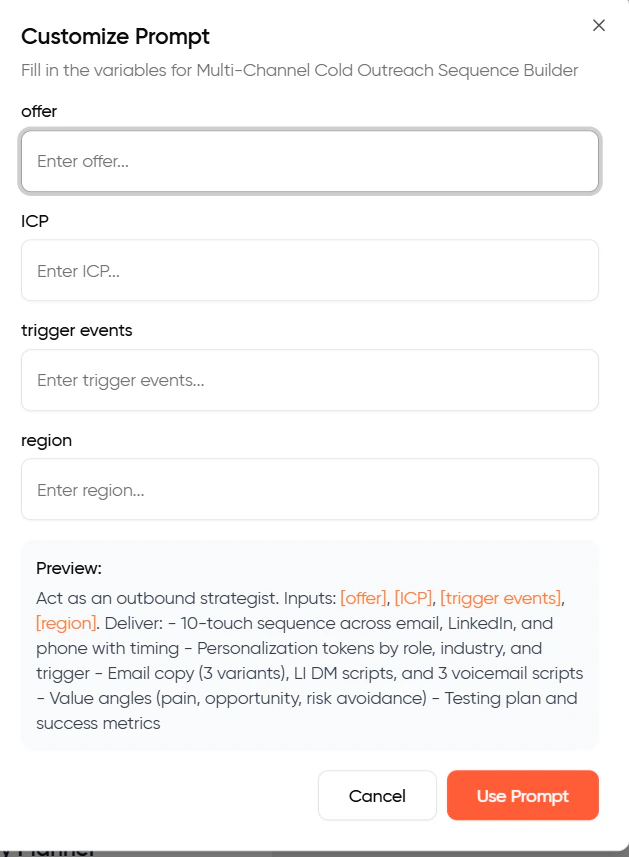 In the above form,
- Offer is what you are selling (say an AI meeting transcription tool)
- ICP is the ‘ideal customer profile’ (HR managers at Fortune 500 companies)
- Trigger events are the reason the prospect may consider purchasing your product (improving productivity through AI adoption)
- Region is the geographical location of your prospect. (US, APAC, Europe etc)
Fill in the above details and click the ‘Use prompt’ button.
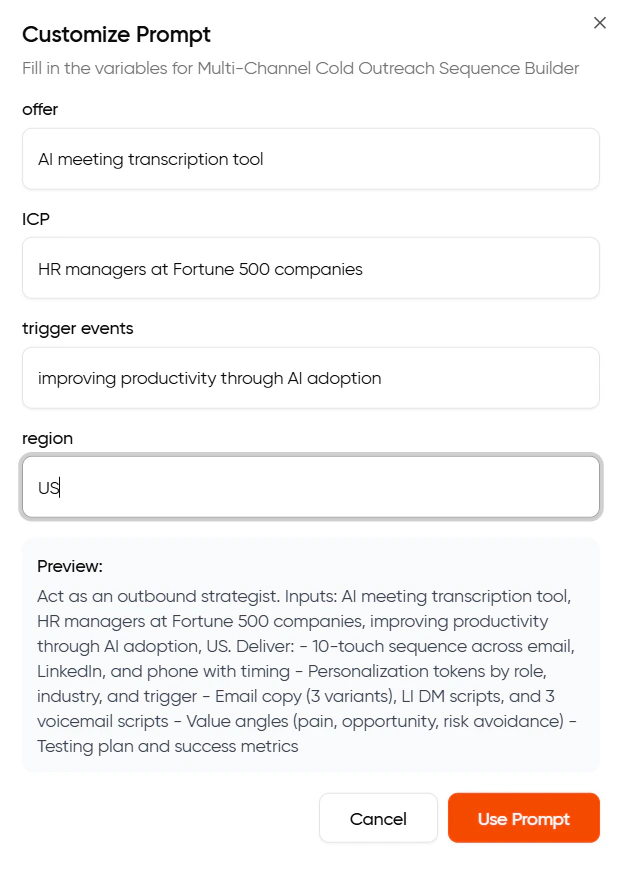 The prompt gets filled into the prompt box. Then choose your preferred model from the drop down and click Go.
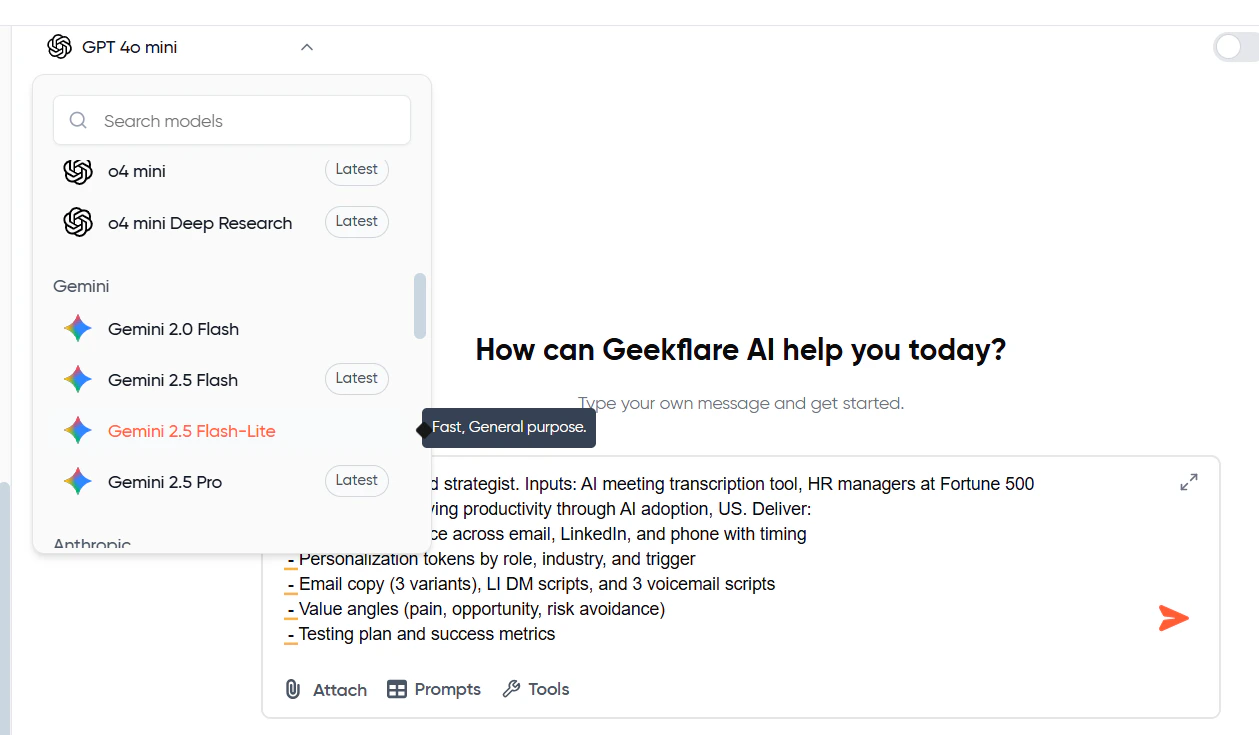 You get a complete campaign strategy with multiple versions of email, LinkedIn DMs, Voicemail scripts and success metrics. You can check the full response on this shared chat thread.
Creating Custom Prompts
For use cases that are unique to your organization, you have the option to create your prompts in the prompt library. You can share these prompts with your team or across the organization.
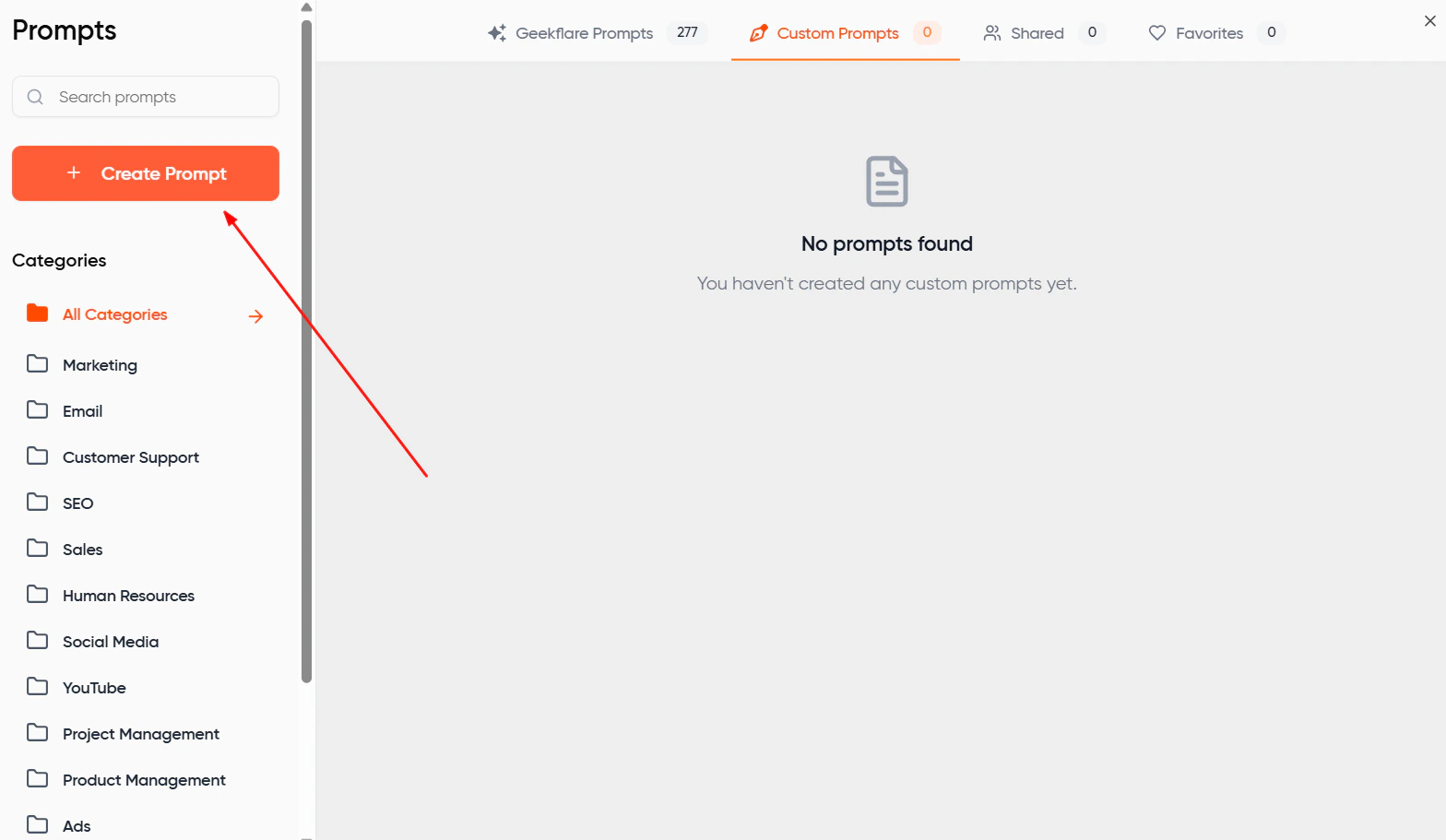
Go to the prompt library and click the Create Prompt button on the left.
 Give a prompt title, category and the prompt content.
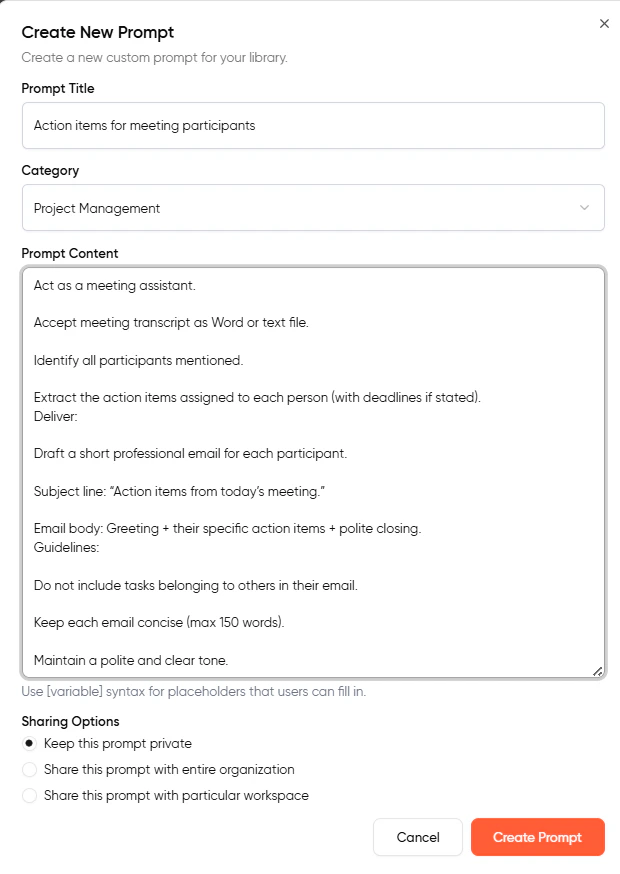 You may give custom variables, if any inside square brackets, like this - [company name].
You can choose to keep your prompt private, share with the entire organization or your workspace. Click the ‘Create Prompt’.
Your prompt gets added to your custom prompts tab, from where you can use it when required.
You may give custom variables, if any inside square brackets, like this - [company name].
You can choose to keep your prompt private, share with the entire organization or your workspace. Click the ‘Create Prompt’.
Your prompt gets added to your custom prompts tab, from where you can use it when required.
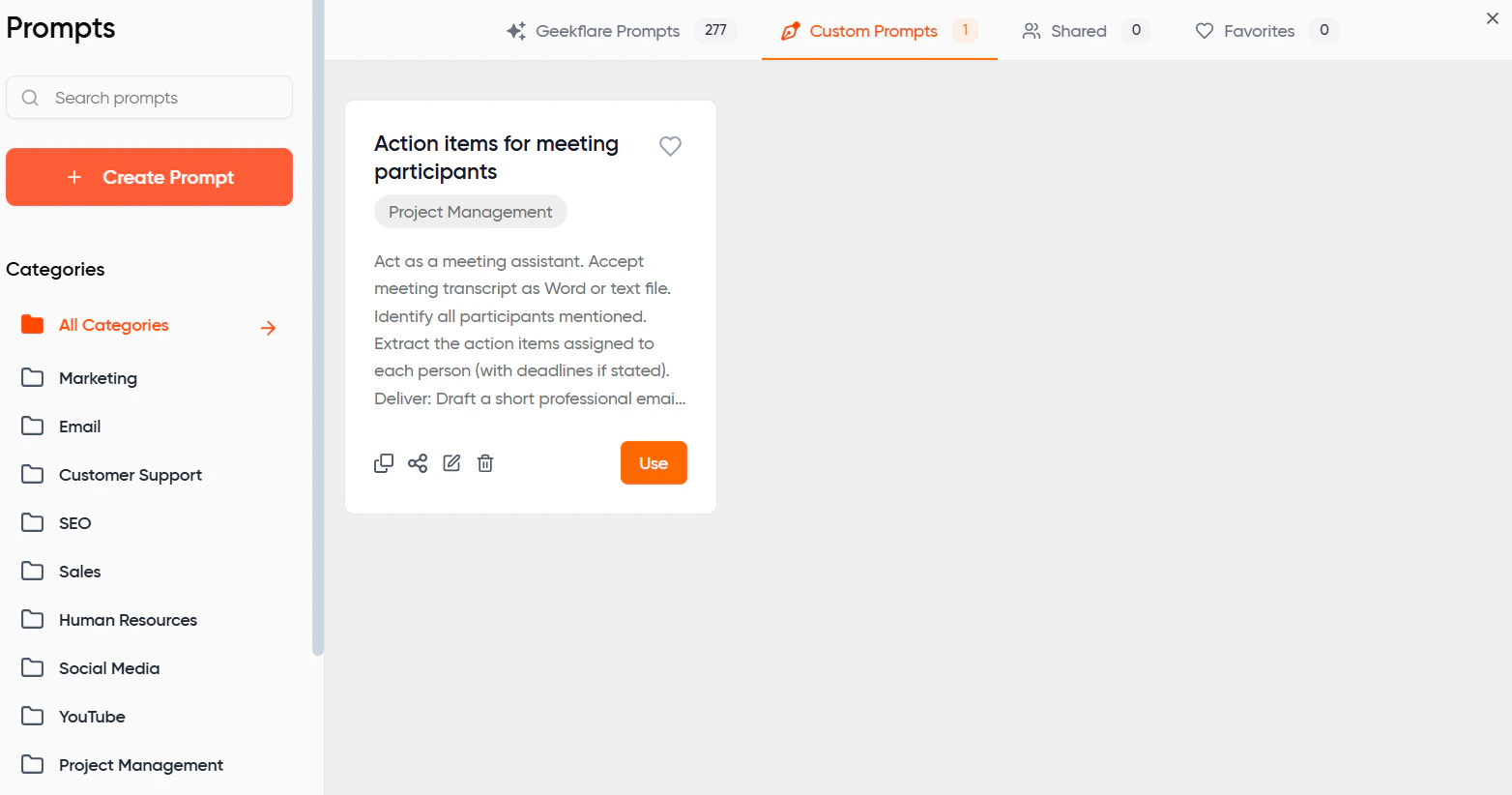 Use the prompt, fill in custom variables, if any, and click go.
Your custom prompts and sharing options can be modified as required from the custom prompts tab in the Prompts Library.
Use the prompt, fill in custom variables, if any, and click go.
Your custom prompts and sharing options can be modified as required from the custom prompts tab in the Prompts Library.
Editing Prompt Instructions
You can make changes to your saved custom prompts.
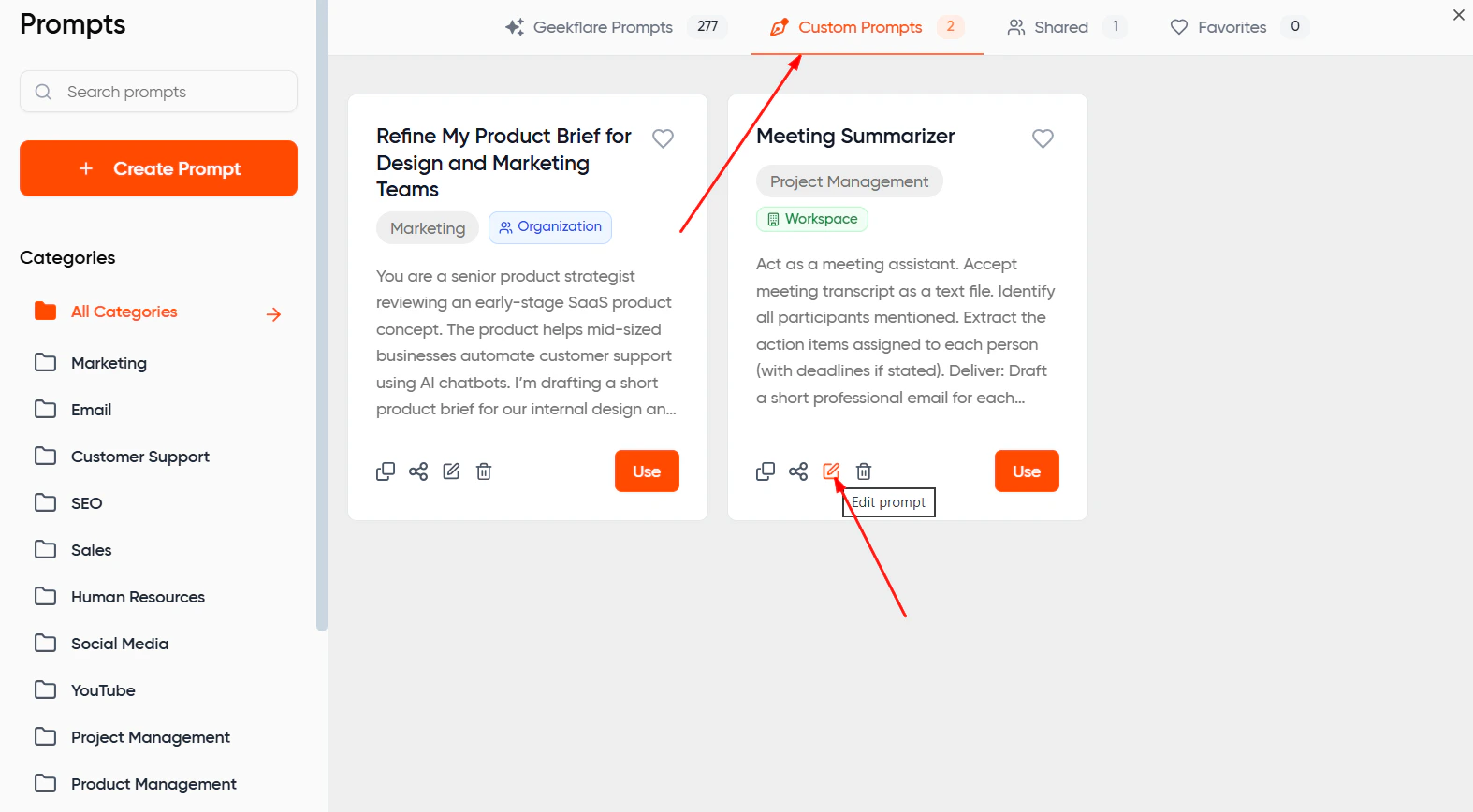
- Open the Prompt Library and go to the Custom Prompts tab.
- Select the prompt you wish to update.
- Click Edit Prompt.
- Modify the instructions or field structure.
- Save your changes.
Best Practices for Prompt Design
To create reliable and reusable prompts:
- Keep instructions clear and specific.
- Use custom variable fields for details that change between clients or tasks.
- Break complex tasks into steps. Use ‘chain-of -thought’ technique
- Use a model that’s best for your task (reasoning/content generation/coding etc)
- Specify tone, format, or constraints only when needed.
- Test the prompt with different models to ensure consistent results.
- Refine prompts based on team feedback.
Good prompt reduces rework and ensures consistent outputs across projects and team members.
